
Trackers
Trackers keep count of what your story depends on beyond anyone's sheet: the time, the party's objectives, a fight's turn order, a clock ticking toward trouble, your standing with every faction. They sit at the top of the game screen. The GM keeps them up to date as the story goes, and players can change them by hand.
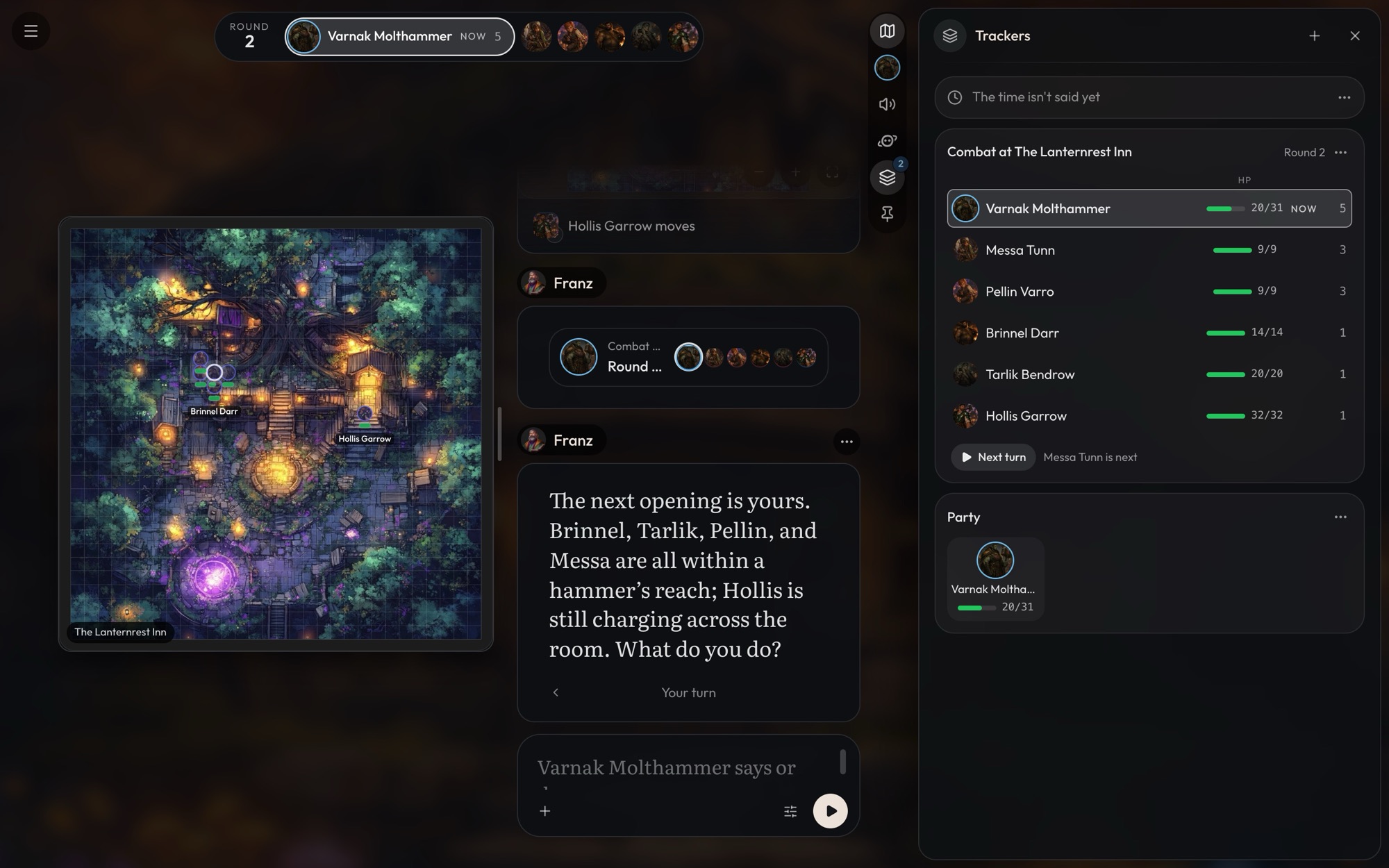
Craft's trackers
Every world comes with five:
- Time. The in-game time, told the way your world tells it. It's in every game from the first turn, and the GM moves it whenever the story takes time worth counting: a journey, a rest, a long talk.
- Objectives. What the party is working toward. It starts the first time the story gives them a goal, and the GM marks each one done or failed when the story settles it.
- Party. Who travels with the player's character, with each member's HP and conditions. The player's character is always in it, and the GM adds companions who join and takes off those who leave.
- Combat. A fight's turn order, with each fighter's HP and conditions. It starts when a fight begins and ends when the fight is over.
- Death saves. One for each dying character, only in worlds whose rules have the dying roll to stay alive.
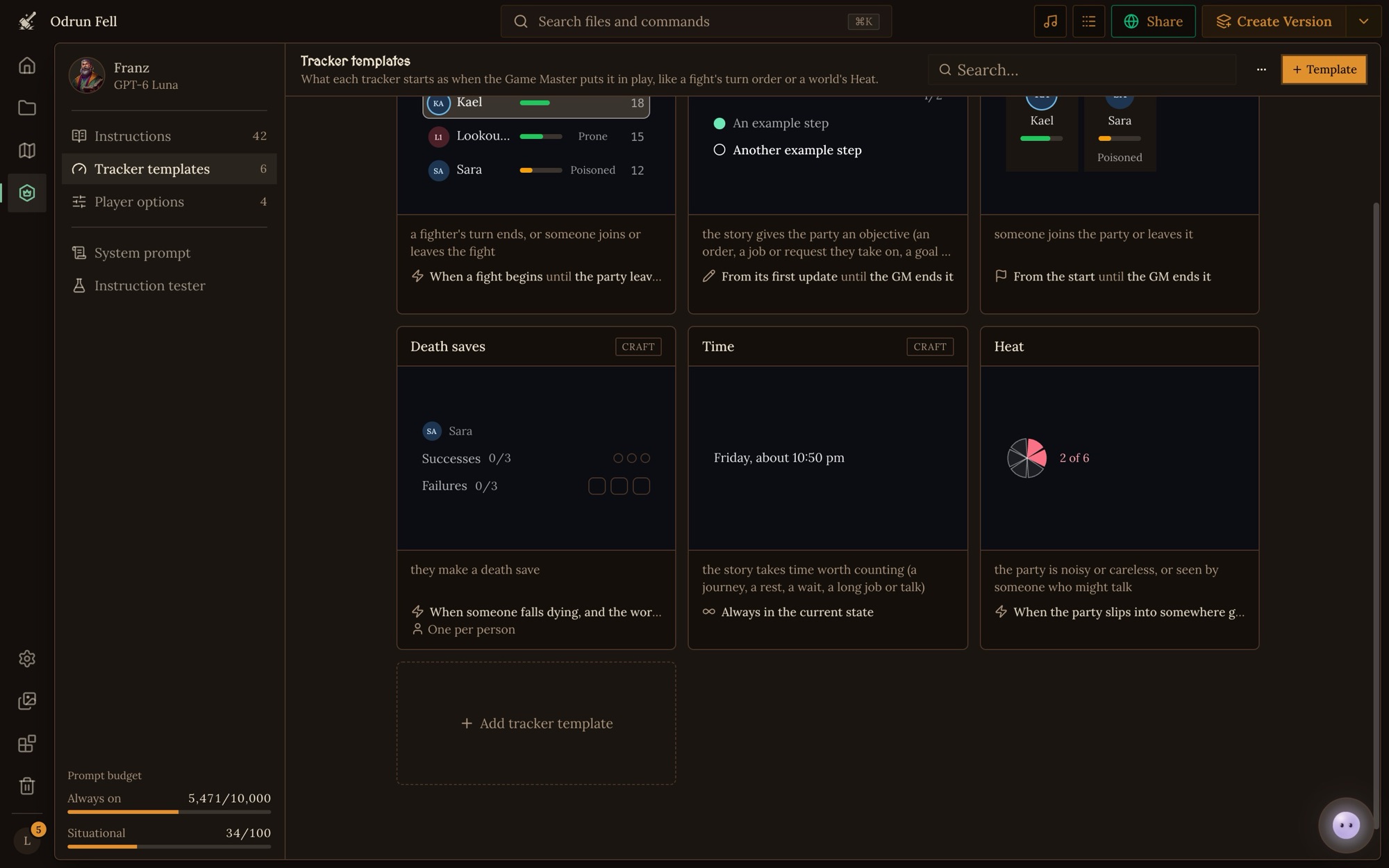
They're yours to change. Open one on the Tracker templates page to rename it, rewrite its instructions or hide it from players, or remove it if your world doesn't need it. A changed tracker stops getting Craft's updates, and Use Craft's version puts Craft's back.
Making your own
Trackers live on the Tracker templates page of the Game Master place. A template is what a tracker starts as when the GM puts it in play. Click Add tracker template and start from a blank tracker or a template:
- Supplies: food, fuel or ammunition that runs down.
- Settlement: a home base's people, food, defenses and spirits.
- Harvest Calendar: the day, the weather and crops ripening.
- Alarm: a clock filling toward trouble while the party sneaks.
- Wanted: a wanted level from 0 to 5.
- Deadline: days counting down to something.
- Clues: what the party has found toward a mystery.
The Combat template fills out Craft's Combat, with HP beside each fighter and rules for running turns. The Time template brings Craft's Time back if you removed it. Every template is complete, so you can save it as it is and change it later.
A tracker opens in a form with a live preview at the top. Tap the preview to try it: fill a clock's slice, add a dot, move whose turn it is. The form has four parts.
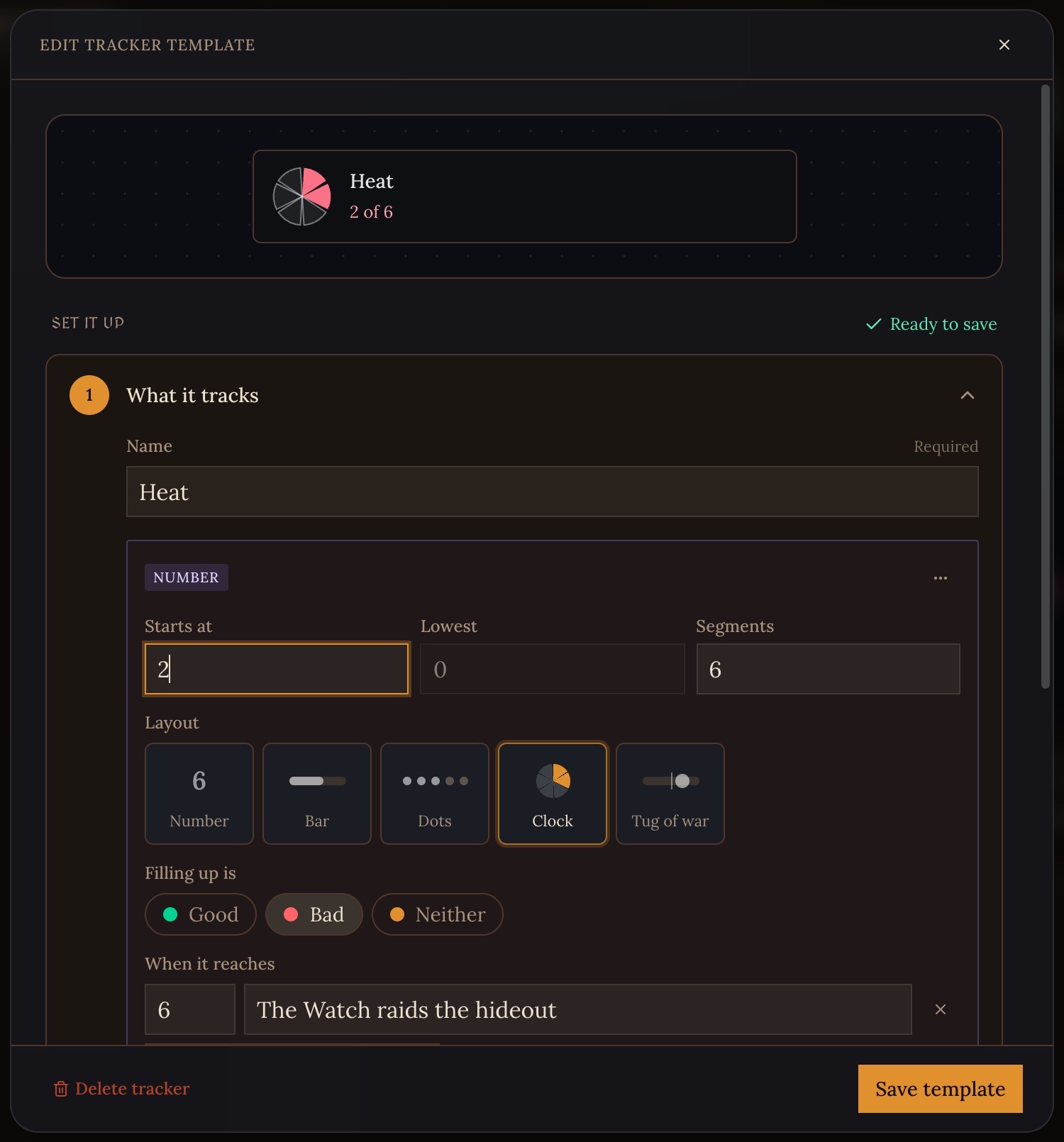
What it tracks
Give the tracker a name, then add up to 8 elements with + Add:
- Number. Shown as a Number, a Bar, Dots, a Clock or a Tug of war. Set where it starts, its lowest and highest (a clock's segments), whether higher is good or bad, and what happens at a number ("At 6: the Watch raids the hideout").
- Text. A line of words, like "Dawn, day 3".
- List. Shown as a Turn order, a Table, a Roster or a Checklist. A list of people says what kind of files its entries are, which columns each entry shows, and who it starts with.
- Links. Pairs of people or things with values between them, like "Kael & Mira: Bond 3". Use it for relationships, debts, or how factions stand with each other.
Each column in a list comes from one of three places: a value from their sheet, where they stand in the scene, or a new value the tracker keeps itself.
When it's tracked
- Starts tracking when. Game start, or when something happens. For the second, write what starts it in Starts when ("a fight breaks out"), or leave it blank and the tracker starts the first time the GM updates it.
- Stops tracking when. Location Changes (it ends when the party leaves), GM ends it, or Never.
- Hidden from the player. The GM sees it, and the player doesn't until the GM reveals it.
How it's tracked
- Updates. On a trigger, with the moment the GM updates it ("the crew draws attention"), or Every turn, for something that changes in every reply, like the day's news.
- Tracking Instructions. How the GM uses it: how much it moves, what each number means, and when it ends. The GM reads these only while the tracker is in play.
Write triggers as moments you could point to in the story, the same way you write situational GM Instructions. See Writing GM Instructions.
Availability
Available in is Every game, or only with the player options you tick. A Hard mode choice could bring a Stress tracker that easier modes leave out.
Point to sheets, don't copy them
A tracker never keeps its own copy of something a sheet already keeps. If the Party should show HP, add a column that reads HP from each member's sheet. The GM changes HP once, on the sheet, and the tracker shows it straight away. A copied value would need a second change every time, and the two would drift apart.
Trackers in play
- The widget at the top of the story shows one tracker at a time, the one the GM started last, until you pick another. Swipe it or use its arrows to step through the rest, and tap it to open the tracker's card. Dismiss hides it until the GM starts another tracker.
- The Trackers button on the rail opens the trackers panel, with every tracker in the game and the time at the top.
- Small changes are taps. On a big screen, tap a clock's slice, a dot, a number's − or +, an objective's circle, or Next turn.
- A card's ⋯ menu has Edit values, Change setup (rename it or add, move and remove fields, for this game only), Show widget and Remove.
- Add a tracker, the + at the top of the panel, adds one of the world's templates that isn't in play yet, or a new tracker you set up yourself.
The GM is told about every change you make before your next turn, and plays from the new values. When the GM changes a tracker, the change shows on the What changed card under the story.
Editing a template changes only trackers that start after the edit. To change a tracker already in a game, use Change setup on its card in that game.
Example: a heist's Heat clock
Say your heist world needs to track how much attention the crew draws.
- Add a blank tracker named Heat. Make its element a Number shown as a Clock with 6 segments, and set Filling up is to bad.
- Starts tracking when: Game start. Stops tracking when: GM ends it.
- Updates on a trigger: "the crew draws attention". Tracking Instructions: "Heat rises by 1 when the crew is noticed and by 2 when a job goes wrong in public. At 6, the Watch raids the hideout and Heat drops to 2."
In play, you botch a lock and a guard spots you. Heat ticks from 2 to 3, and the change card under the story says so. Let it reach 6 and the Watch comes for the hideout.
Limits
- A game holds up to 10 trackers at once, not counting the time. When it's full, remove one before another can start.
- A tracker has up to 8 elements.
- Trackers don't count toward the always on budget for GM Instructions. Each one adds a short line to the GM's prompt every turn, and its Tracking Instructions only while it's in play.
You can also ask Orbit to write a tracker from a description, or write trackers in a Craft CLI workspace. Each game start can set which trackers are on and what they start at: see Game Starts.