
Moving a World from Friends & Fables to Craft
Bringing your Fables world into Craft
Friends & Fables exports worlds as Workspace CDF zips, so any world you own in Fables can be exported and re-opened as a project in Craft. Your characters, locations, lore, and maps come with you. This guide walks you through the export on the Fables side and the import on the Craft side, plus what to check once your project lands.
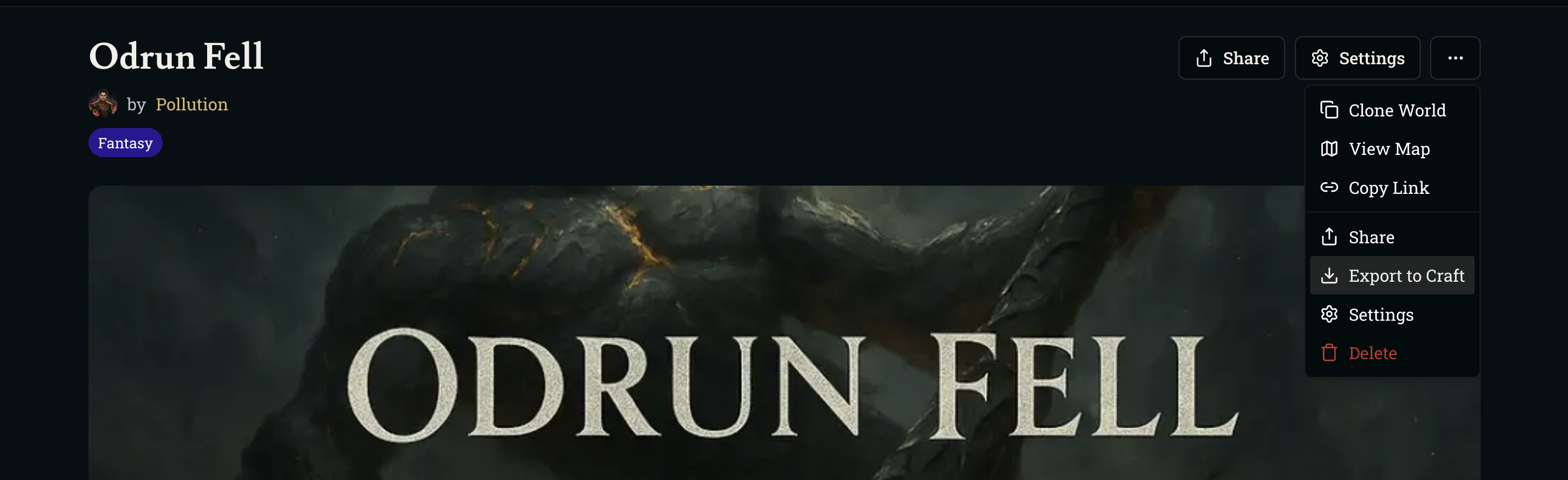
Exporting your world from Fables
Start in Friends & Fables at play.fables.gg, open the world you want to move, and use the world's own menu to generate the export file.
Generate the Workspace CDF
-
Open the world from your Fables dashboard.
-
Click the three-dot menu in the top right of the world page.
-
Choose Export to Craft.
-
Fables generates a Workspace CDF zip and downloads it to your computer.
What ends up in the file
-
Every file in the world, including characters, locations, factions, and lore.
-
Map images.
-
5e-SRD if you have the SRD included in your game.
-
The world's basic metadata, like its name and description.
You only need to export worlds you own. Worlds you've played in but didn't create stay where they are.
Importing the file into Craft
Now switch over to Craft at craftrpgs.com and bring the file in through the Import page.
Open the Import page from the New Project page
-
From anywhere in Craft, click + New Project in the global left sidebar.
-
The New Project page opens.
-
Click Import Project in the header of the page.
-
You land on the Import Project page.
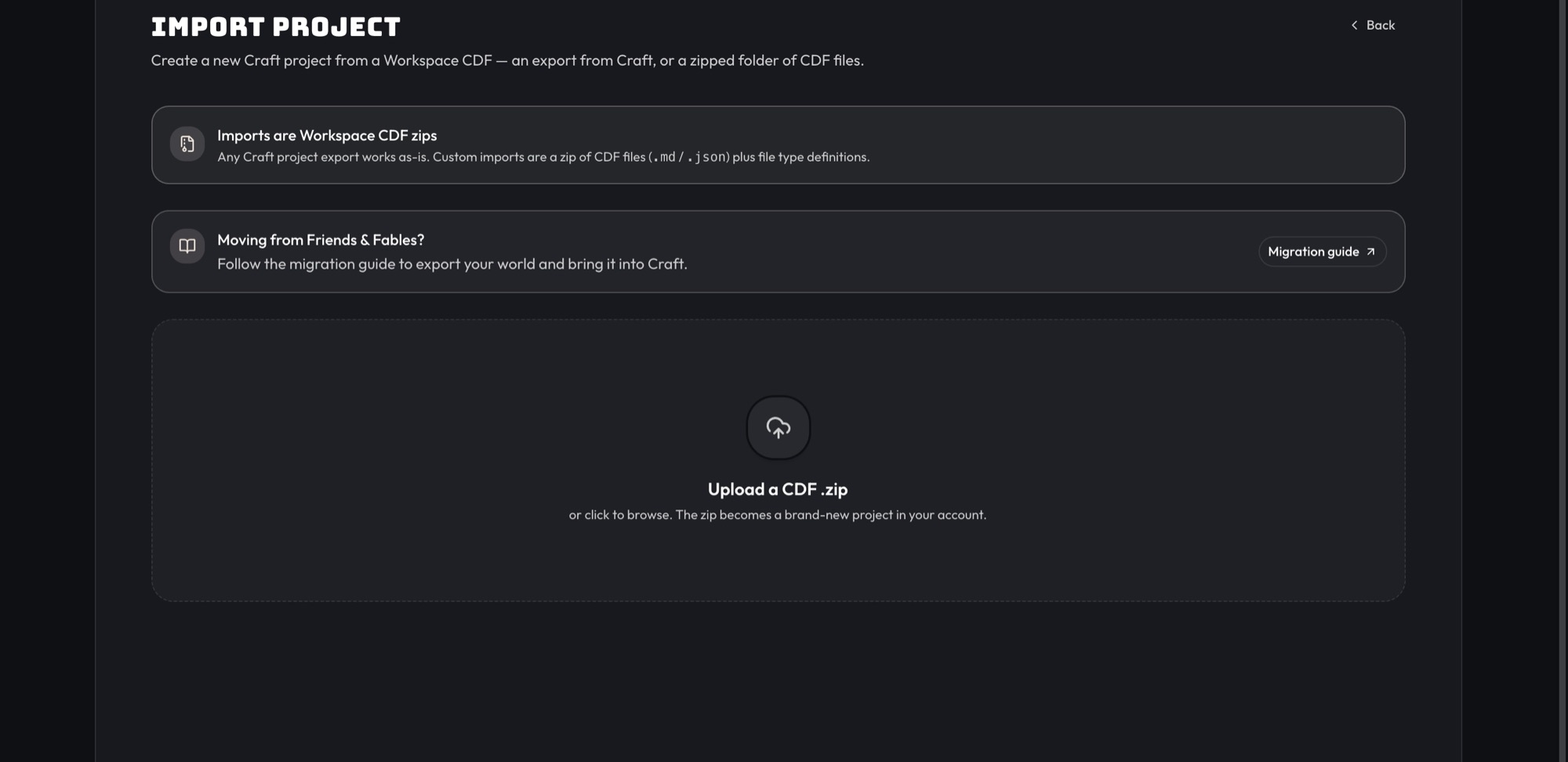
Upload the zip
-
Drop the zip Fables gave you onto the upload area, or click it to browse for the file.
-
Craft imports it right away and creates a new project in your account — when it finishes, click Open project.
Import is a one-way action that creates a brand new project. Your original Fables world stays untouched, so nothing breaks on the Fables side.
Upgrade the Game Master
A world imported from Fables can arrive on Craft's previous Game Master. If it did, Craft invites you to upgrade it the first time you open the project, and a gold banner across the top of the workspace offers Upgrade until you do. Do this first: everything else in these docs describes the current Game Master. Click Start the upgrade and follow the V1 → V2 migration guide. It takes a few minutes, and new games start on the upgraded Game Master once you publish a version.
What to check after import
Open the newly imported project and give it a quick pass before you start playing or editing.
Confirm your files landed
-
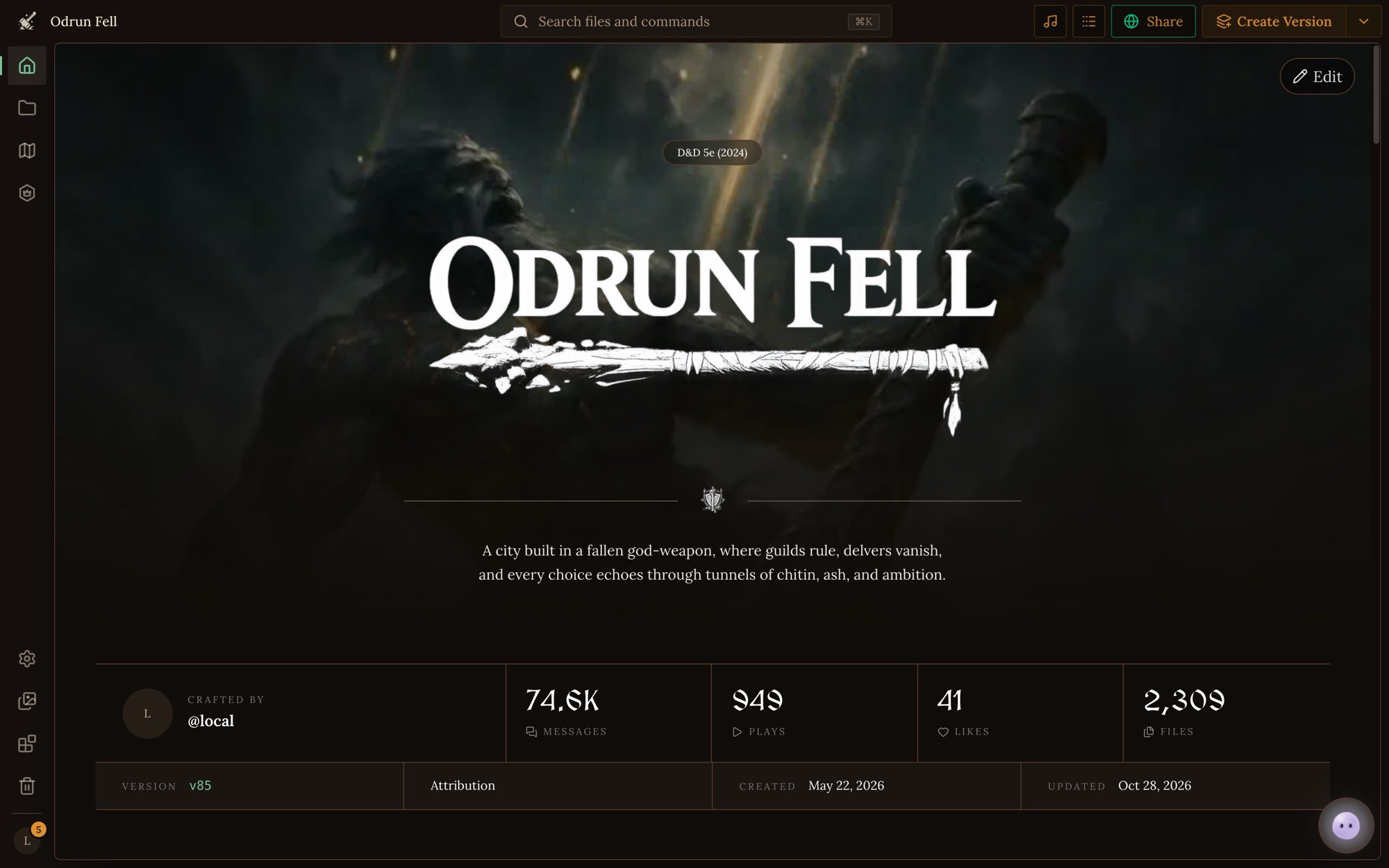
Open the project from Projects in the sidebar.
-
Check that the Files count on the project's Overview lines up with what your Fables world had.
-
Click Files in the workspace's left rail and browse the tree to spot-check that characters, locations, and notes came through.
Check the map
-
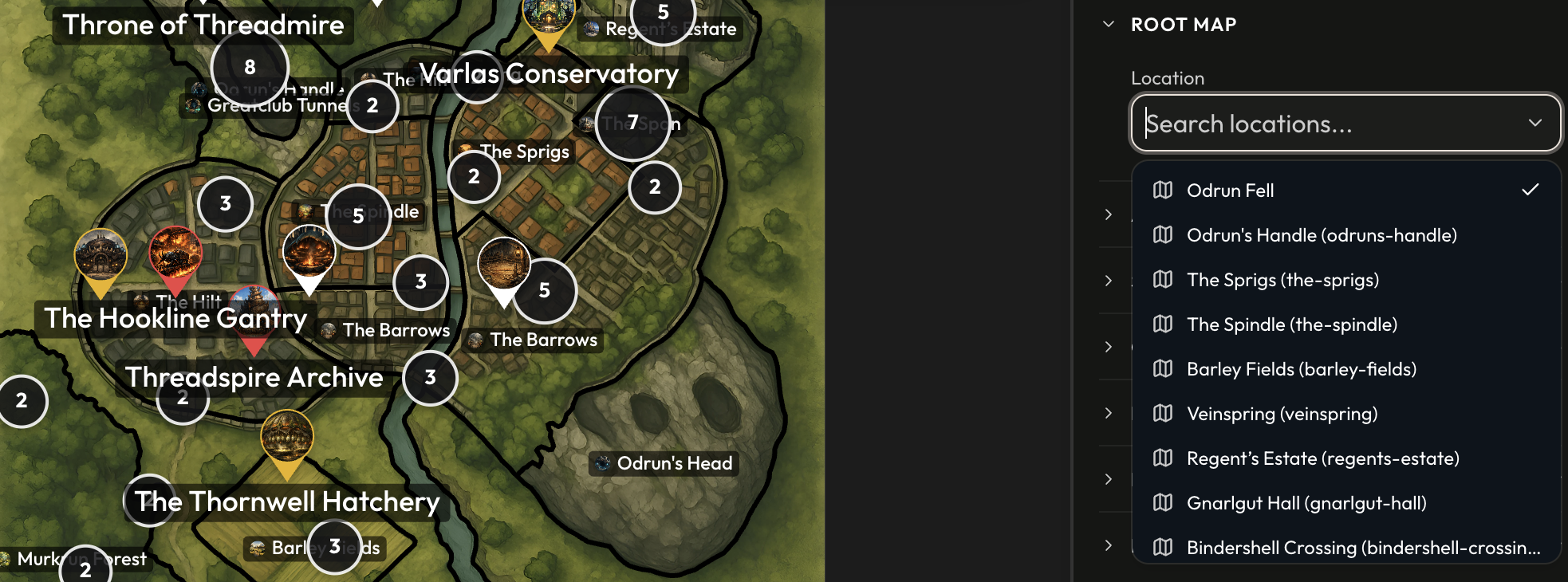
Click Maps in the left rail of the project workspace. It opens on your world map.
-
Confirm your world map image loaded. If the wrong location was picked as the world map, change it under Root map in that map's Map settings.
Maps work differently here than in Fables. Instead of one canvas you keep zooming into, each place can have a map of its own: the world map holds a city, the city's map holds a tavern, and you click through to go down a level. See Maps and Locations for how that fits together.
Skim project settings
-
Click Settings in the workspace's left rail.
-
Under Project, double-check the name, description, and game system.
You can also toggle Allow Cloning and add Attribution here.
Name your Game Master
-
Click Game Master in the left rail, then the GM's profile at the top of its list, to set its name, portrait and voice. Fables called the GM "Franz" by default. In Craft the name is yours to choose.
-
Your world's rules for the GM live in the same place, as GM Instructions. See The Game Master.
Things to know before importing
A few quick notes that save trouble later.
Use the Import page, not Orbit
-
Export zips have to go through the Import page.
-
Orbit, the project assistant, can't unpack an export zip shared in chat.
Imports are versioned snapshots, not live mirrors
-
The Craft project is a copy. Changes you make in Craft don't sync back to Fables.
-
If you keep editing in Fables and want those updates in Craft, re-export and re-import as a new project.