
The Game Screen
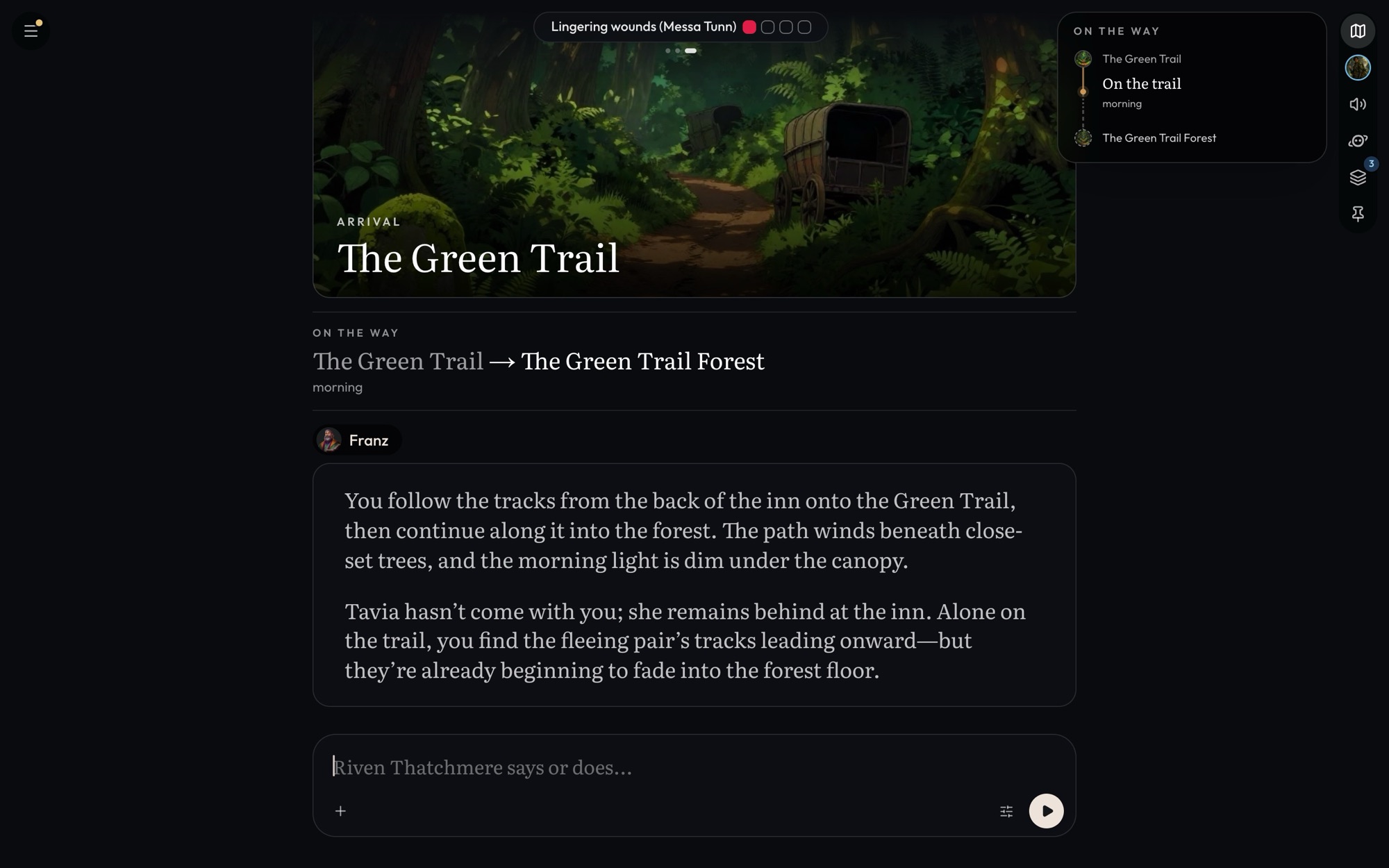
The game screen tells the story a page at a time, like a visual novel. The place you're in fills the background, whoever is speaking stands in the scene, and the map, your character and the world's trackers sit around the story. This page walks through everything on it.
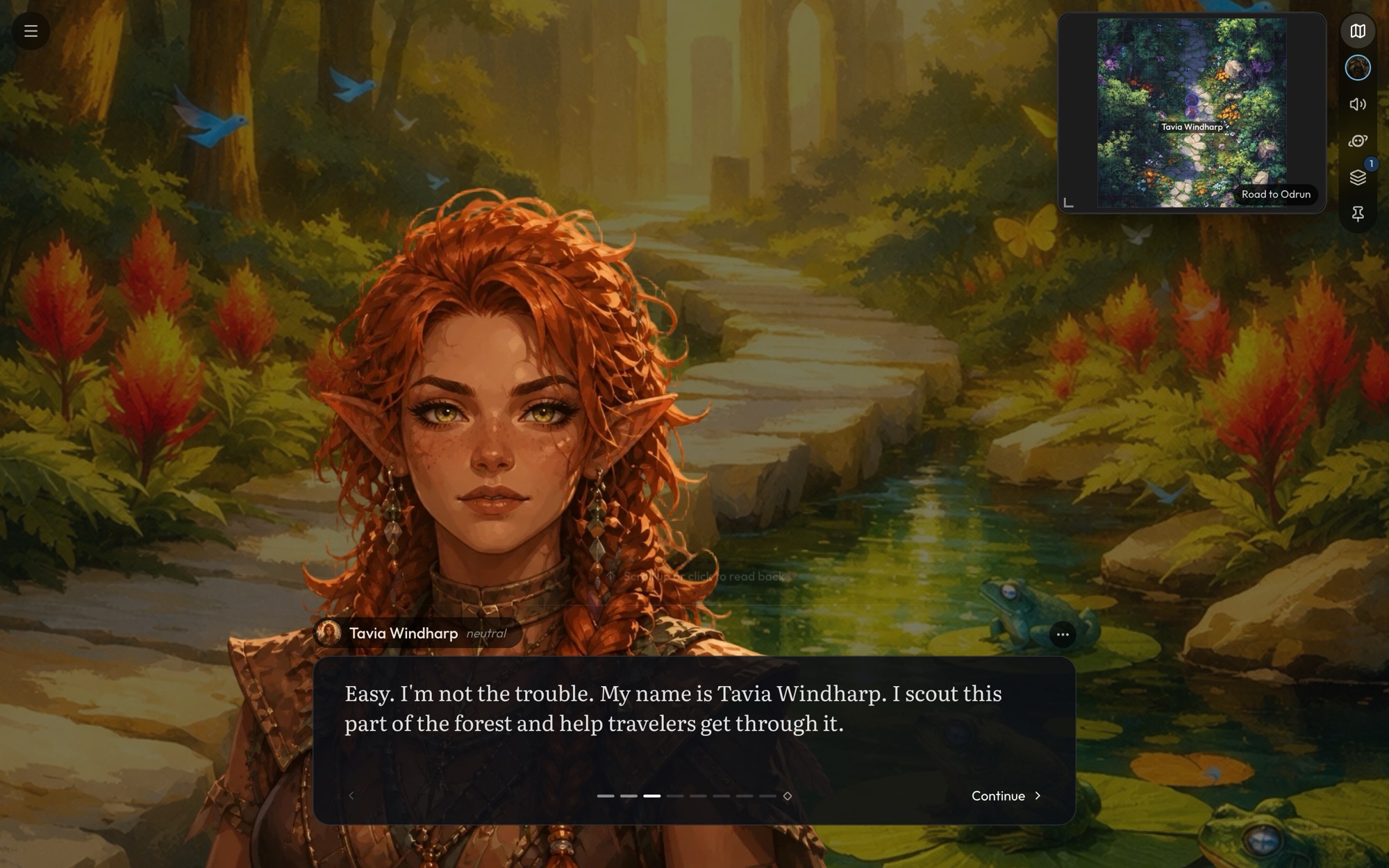
Reading a reply
The Game Master's reply comes in as pages. To move through them:
- Click Continue, click the right half of the scene, or press →. Back, the left half of the scene and ← go back a page.
- Hold Continue to skip to the reply's last page.
- On the last page, Continue becomes Your turn. It opens the story so far above the page and brings in the turn input.
Each page shows who is talking. The narrator's pages carry the GM's name, and a character's line carries theirs. To read earlier turns, scroll up or click the space above the page ("Scroll up or click to read back"). On a phone, tap Story so far.
How characters appear
When a character speaks, what you see depends on the art they have:
- Expressions with cut-outs. The character stands in the scene as a full figure, and their face changes to match each line.
- Expressions only. Their portrait swaps between moods as they speak.
- A single image. Their one portrait shows for every line.
On your turn, your own character stands beside the turn input, or their portrait sits beside it if they have no cut-out. Click them to open their sheet. See Character Expressions for giving a character more than one look.
What a reply shows besides words
Everything the GM does in a turn shows up in the story, in the order it happened, right after the words that led to it.
- Arrivals. When the story reaches a new place, its picture fills the screen with its name. A journey shows "ON THE WAY" with where you're going from and to. A place the GM has just made shows "ARRIVING AT" while its picture and map are drawn.
- Dice. Every roll gets a card: who rolled, what for, the dice landing and the total. The verdict is stamped on it: HIT or MISS, PASS or FAIL, CRIT on a natural 20 that hits, FUMBLE on a natural 1 that misses.
- Hurts, heals and conditions. A wound drains the person's health bar, someone going down is greyed out, and a condition gained or ended gets its own card. A spell with no roll shows in its element's colour.
- What changed. A row per person with their changes as chips: −10 HP, + Rope, −11 Gold. Money spent is counted once, so a purchase never comes out of your purse twice.
- New in the world. When the GM makes a character, item or place, its card fills in as it's made: the picture, the name and type, and a line about it.
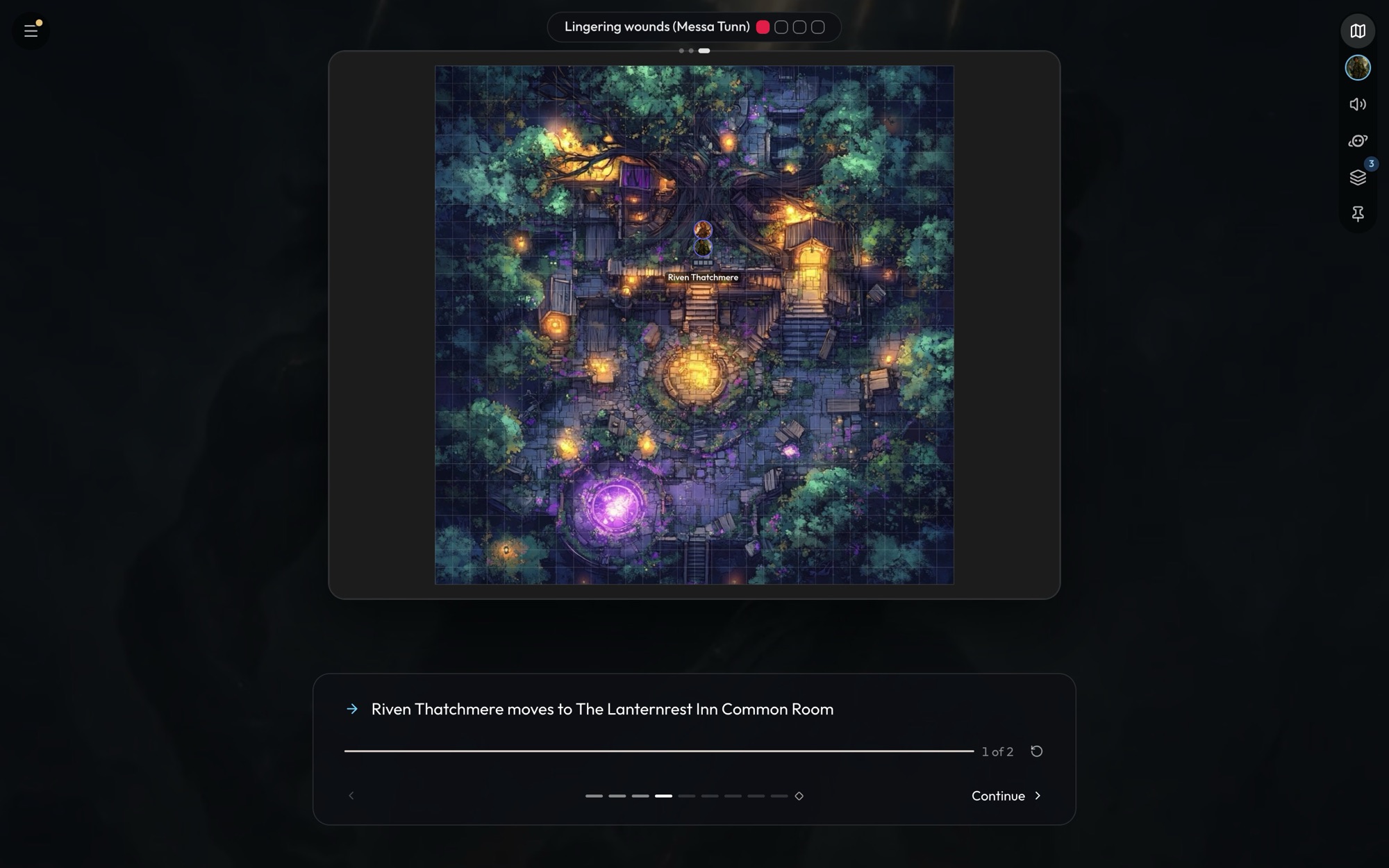
- Moments on the map. When people move or a fight breaks out, the map comes up and plays it out. Smaller moments, like someone walking in or a skill check, play quietly on the corner map without stopping the story.
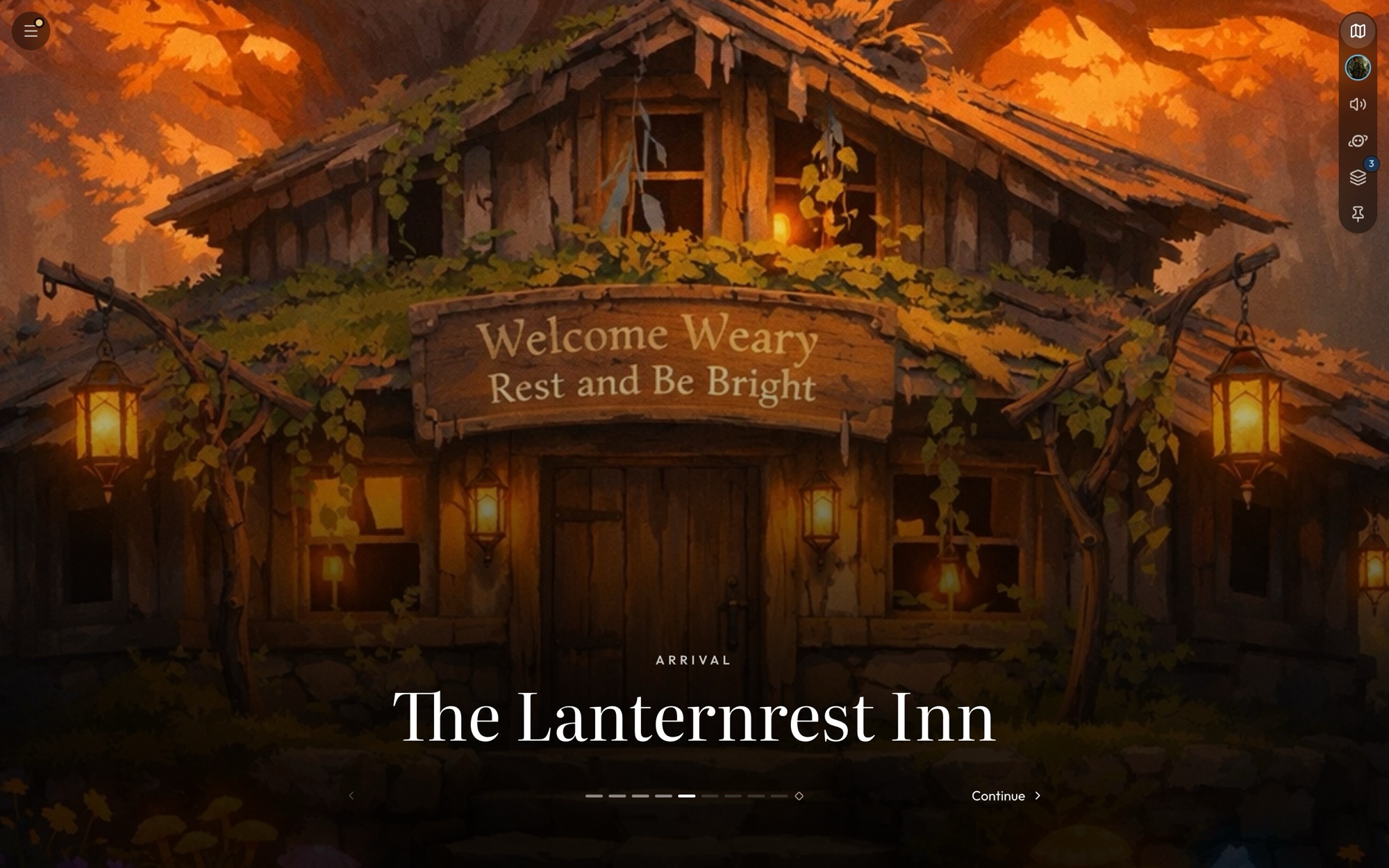
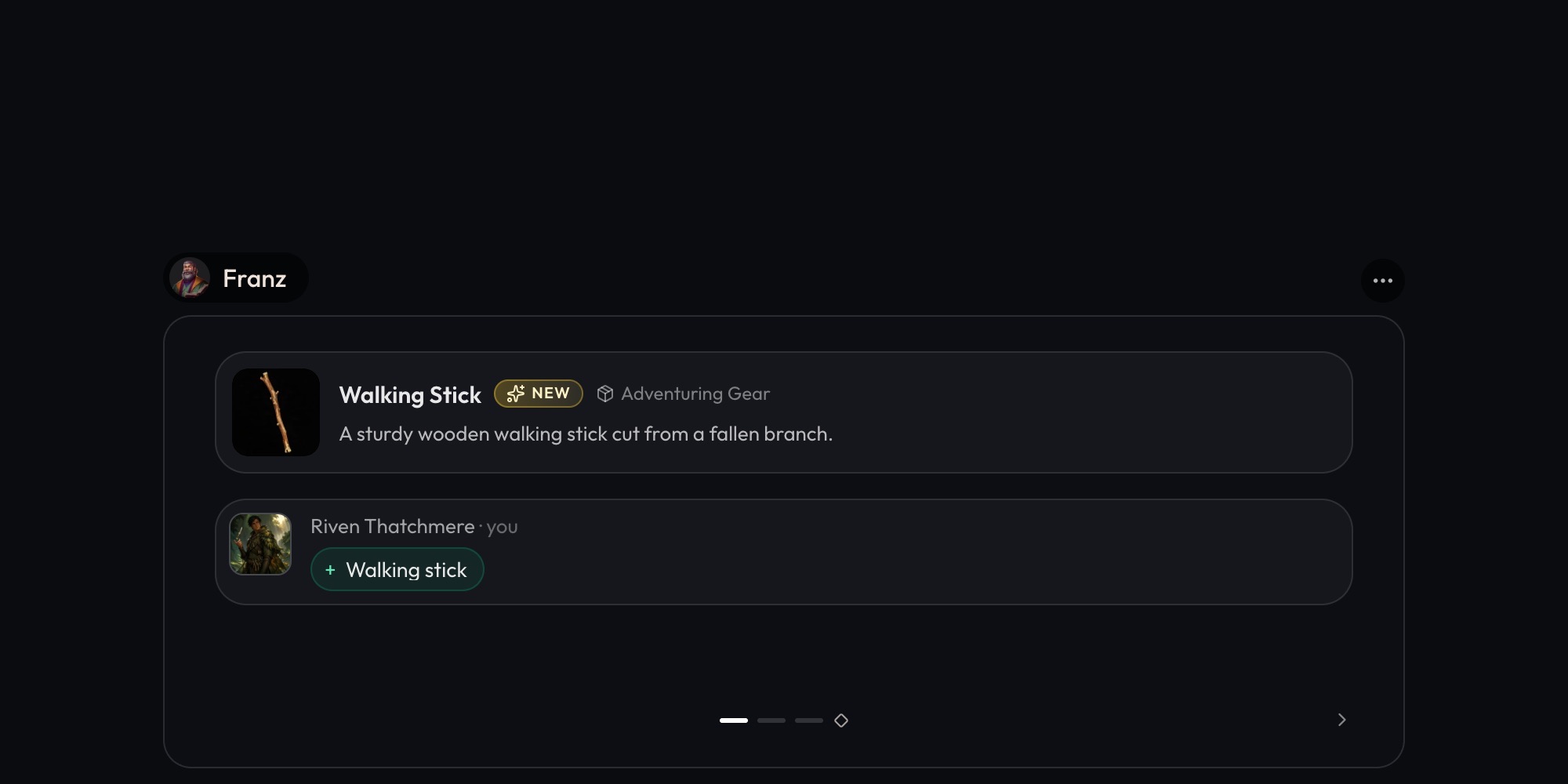
Tap a face on any card to open that person's sheet. Your sheet already matches what the card says.
The map
The scene's map sits in a corner card. Pan and zoom inside it. Hover it (or tap on a phone) for its bar: drag the handle to another corner, centre on your character, zoom, fit, open it up over the story, or tuck it away. Drag the card's inner corner to resize it.
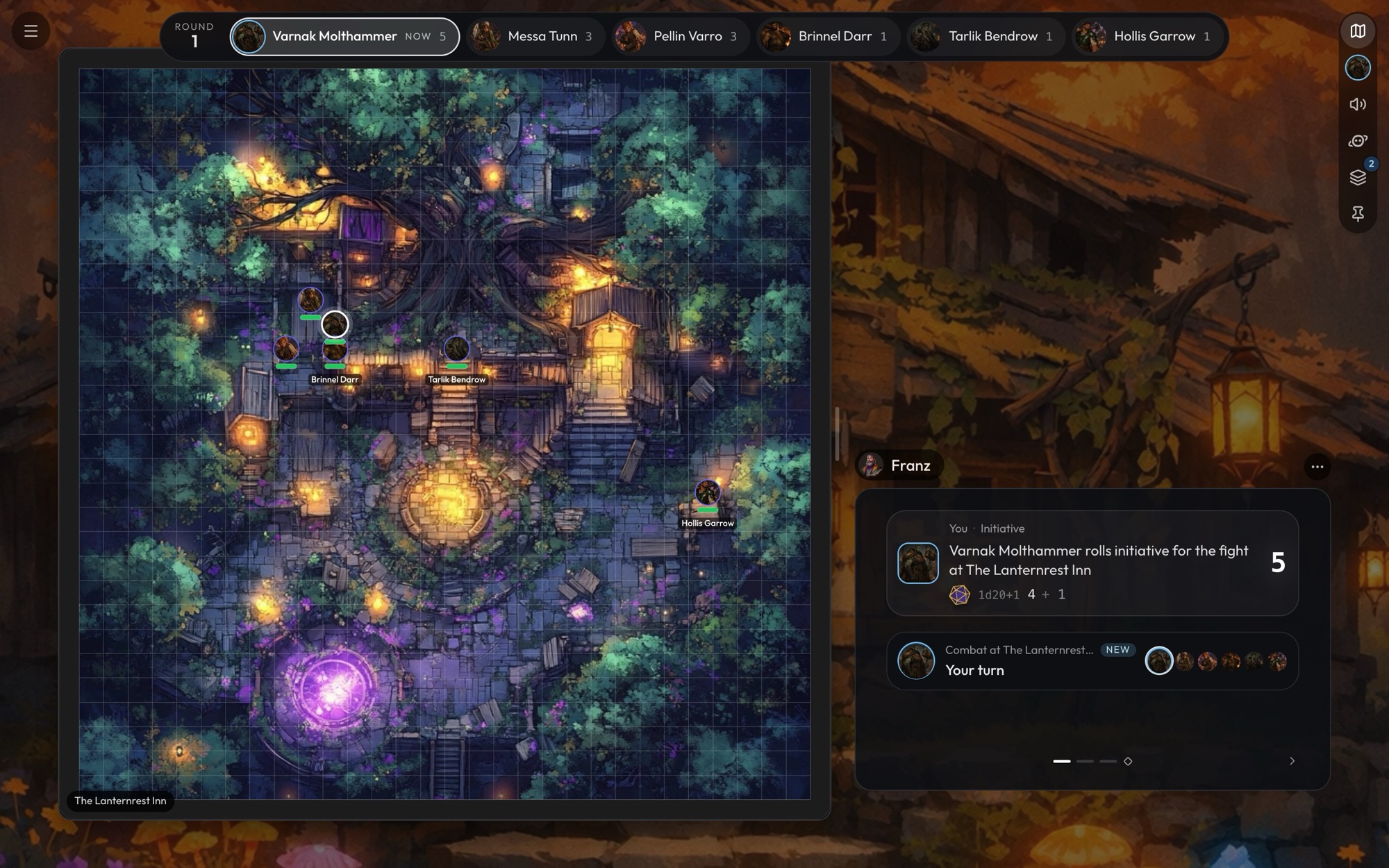
- Beside the story. When a fight starts on a big screen, the map slides out to fill the left side and the story moves to a column on the right. Drag the edge between them to share the space. You can keep the map there any time with the button under its handle ("Put the map beside the story").
- Moving your character. Drag them on the map opened up or beside the story. On the small corner card, click someone and pick Move.
- Travel. Open the map up and use the map names at its top to go up to the region and world maps. Pick a place and choose Travel. If people could come along, Travel With lets you tick who goes.
How the GM reads your world's maps, and what decides where people end up, is covered in How the GM Uses Your Maps.
Trackers
The trackers strip across the top of the screen shows what the story is keeping count of: the time, your objectives, a fight's turn order and health, your party, and any trackers the world adds, like a ticking clock or your standing with a faction. Tap one to open its card, and swipe or use the arrows beside it to step through the rest. The rail opens them all at once. When a tracker moves during a reply, a card in the story says so. See Trackers.
The rail and the side panel
The rail is the row of round buttons down the right edge (along the top on a phone). From the top:
- Map moves the map between its corner, beside the story and tucked away.
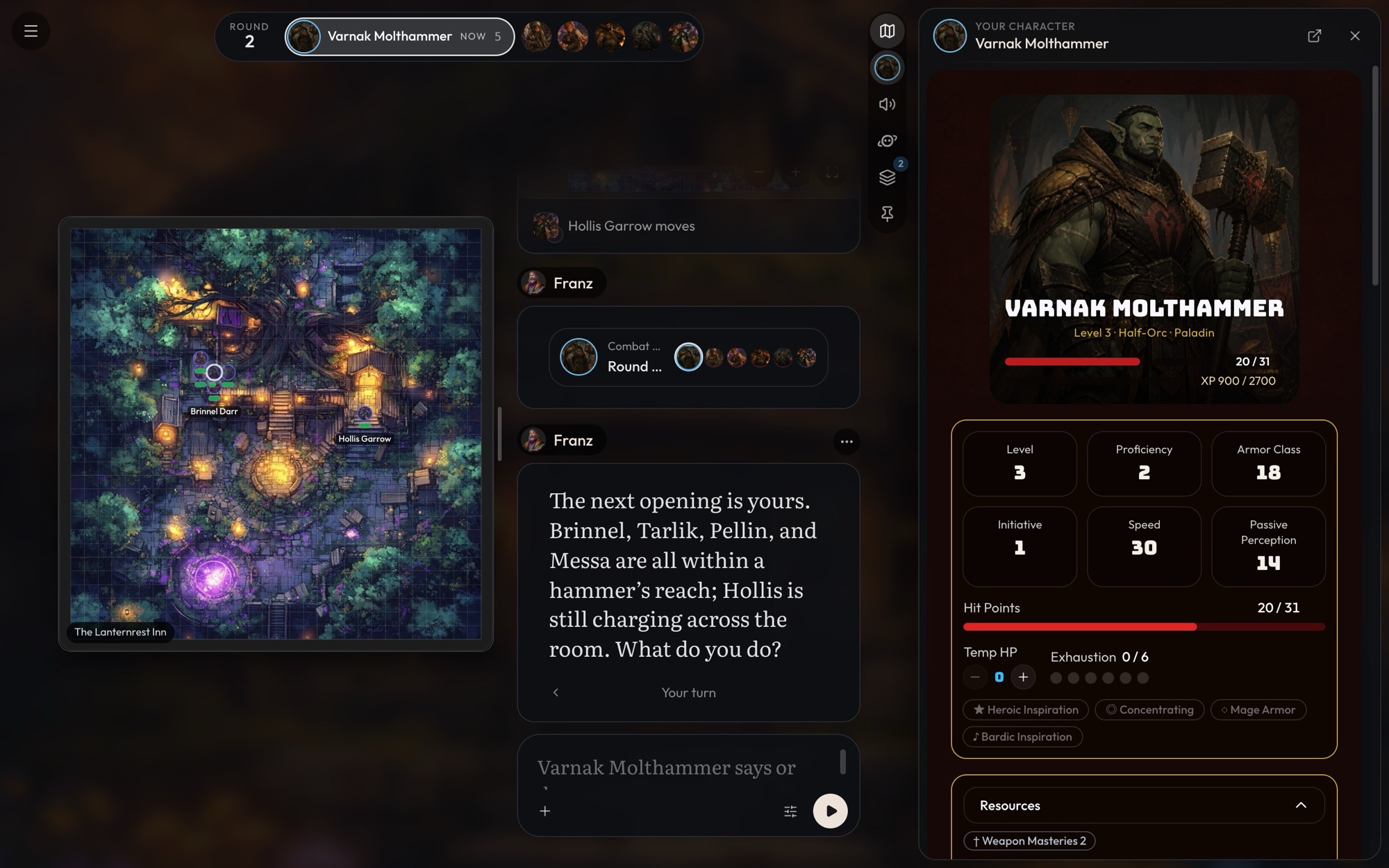
- Your portrait opens your character sheet.
- Audio holds the music, the narration and their volumes.
- The assistant opens Orbit, for rules questions and out-of-character help (see Orbit).
- Trackers opens every tracker in the game.
- Pinned files opens files the world's creator pinned for players, like an important faction or a game rule. The game's owner can change the pins with the pencil.
Your sheet, the assistant, the trackers, pinned files and Inspect turn all open in the side panel. Drag its left edge to make it wider or narrower. Press Esc to close it, or swipe it to the right on a phone.
Taking your turn
Type what your character says or does, then send it. With nothing typed, the button continues the story instead, so the GM goes on without you.
The + at the start of the turn input adds to your turn:
- Add image attaches a picture (only with a model that can see images).
- Create scene image paints the current scene. It costs the same as any picture on your image model.
- Roll dice opens the dice roller. See Dice and Rolling.
When the GM asks you to roll, the request shows over the turn input: what the roll decides, the dice, and a Roll button. Anything you write goes along with the roll.
While the GM writes, a count of what has come in and a Stop button sit under the page.
The reply menu and Inspect turn
Every reply has a ⋯ menu beside its label, and every one of your turns has one when you read back. It holds Edit, Rewrite (try the reply again), Copy, Visual novel from here or up to here, Inspect turn, Give Feedback and Report bug.
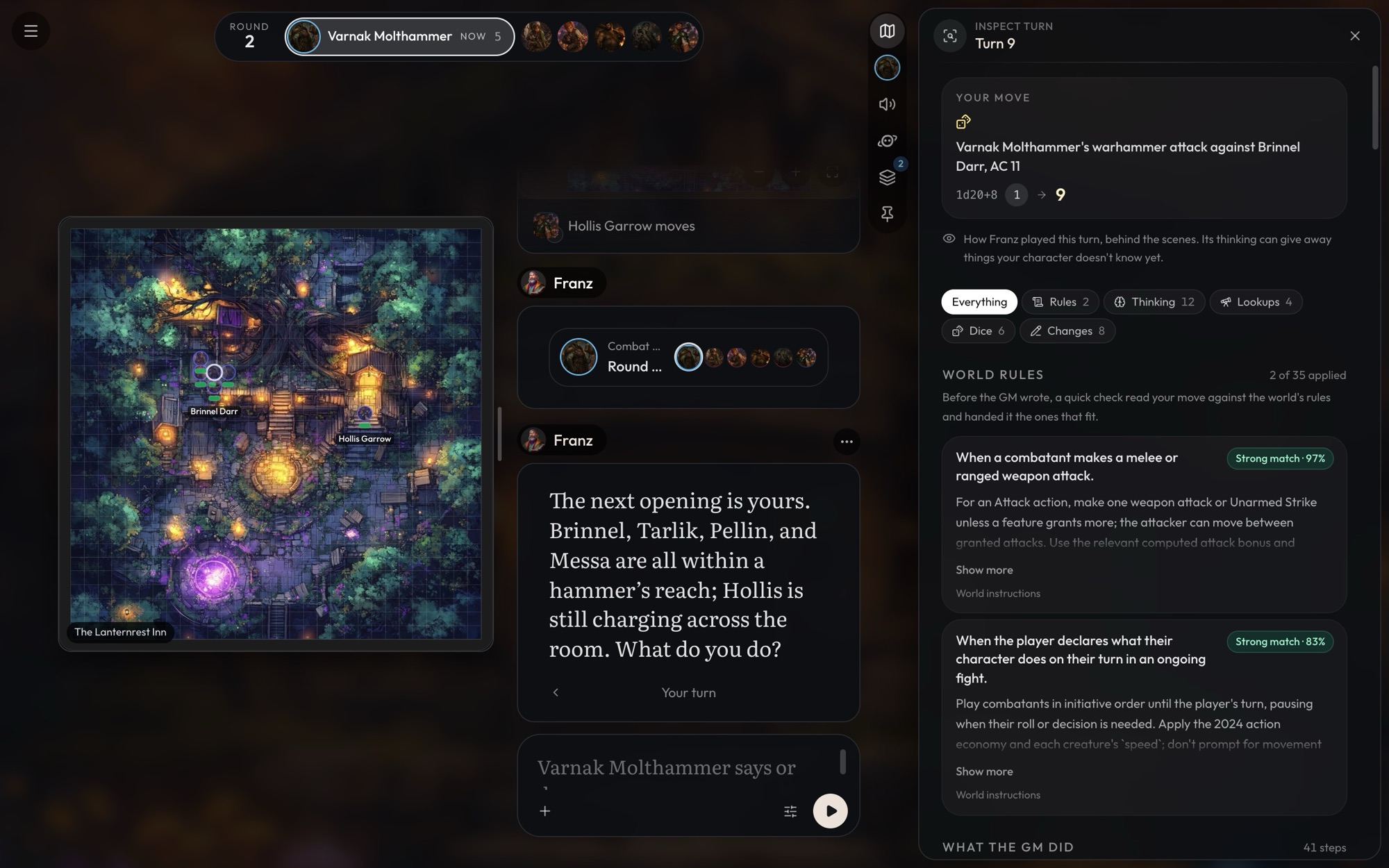
Inspect turn shows why the GM did what it did. It opens in the side panel and walks through the turn:
- Your move.
- The world rules the GM was given for that moment, with how strong a match each was ("Strong match · 85%").
- Every step in order: its thinking, what it looked up and what it found, the files it read, its dice, and each change it made, with the files changed.
- The files read, changed and created this turn.
Filter it to Rules, Thinking, Lookups, Dice or Changes. The GM's thinking can give the plot away, so the panel warns you first.
The menu
The menu at the top left has:
- Open workspace and Search files, for the game's own files.
- Player's handbook, when the world has one.
- Get updates, to pull the world's latest version into your game. A gold dot on the menu means one is waiting (see Game Sync).
- Share as visual novel.
- Game settings (Quick settings, below) and Workspace settings.
- Take a tour, for a walk around the screen.
- Exit Game.
Quick settings
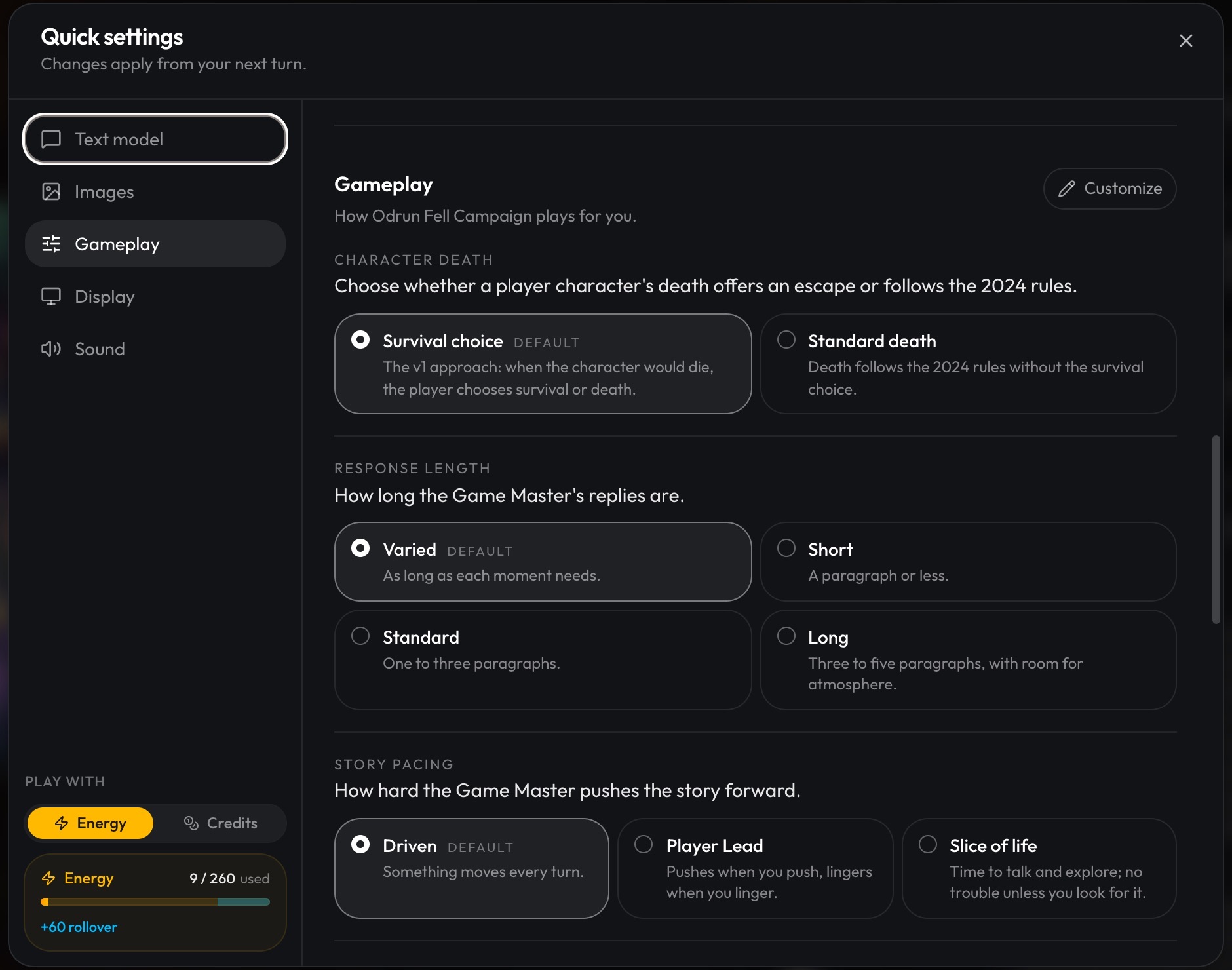
Open Quick settings with the sliders button beside Send, or from the menu's Game settings. Changes apply from your next turn.
- Text model. The model running the GM, and how hard it thinks.
- Images. Use Craft Image Bank (Free) is on by default and makes every picture the GM adds free. Turn it off to pick your own image model. See The Craft Image Bank.
- Gameplay. The world's player options, like response length or story pacing. Only the game's owner can change them. See Player Options.
- Display. Chat Only (below).
- Sound. Music, reading the story aloud, and the map's sound effects.
The panel also shows whether turns are paid with energy or credits. Turns are paid for by the game's owner. See Energy and Credits.
Chat Only
Prefer reading like a chat? Turn on Chat Only under Display. Replies stream in under your turn instead of as pages, the whole story stays on screen, and you can write your next move while the GM is still writing. Chat Only shows no cut-outs and doesn't read the story aloud. The choice is kept on your device, for every game.
Reading the story aloud
Turn on Read the story aloud under Sound, or in the rail's audio button. Each page is read as it opens, in the voice of whoever is speaking. Turn the pages for me moves on once a page has been read. Narration is paid for by the game's owner, by the number of characters read, and the setting shows the price.
Changing things between turns
You can change things by hand between turns: your HP on your sheet, a file, a tracker, or a player option. The GM is told what you changed before your next move, and plays from the new values.
On a phone
- The rail runs along the top, and the story text is larger.
- The map button opens the map over the screen. To keep a small map showing, pick "Keep a small map on screen" from the opened map's bar.
- The side panel covers the screen. Swipe right to put it away.
- Tap a tracker's values to edit them.