
Drawing Maps
The map editor is where you draw on a location's map: outline regions, drop pins for places, place tokens for characters, and set the map's image, scale and grid. Open it from Maps in the workspace's left rail, or from a location file with View on map. To jump to another map, click the map's name at the top left ("Go to another map") and search your locations. The root map and the map you're on are pinned at the top of that list.
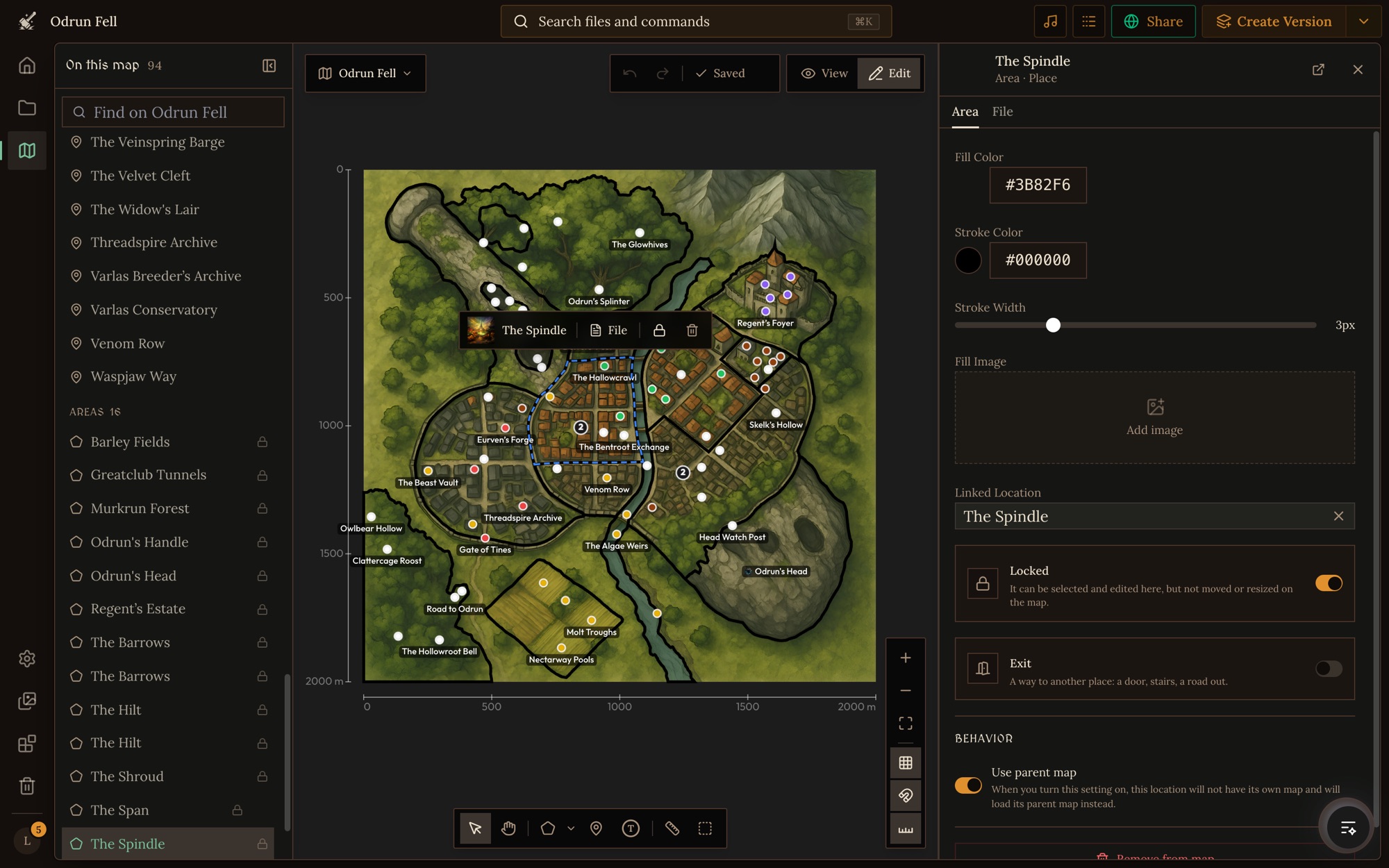
The editor has three parts:
- The canvas in the middle, with the toolbar under the map, zoom and view buttons at the bottom right, and undo, redo, the save status and the View / Edit switch at the top.
- On this map on the left: everything drawn on this map, grouped as Pins, Areas, Tokens and Images, with a search box. Open or close it with the button at the top left of the canvas.
- The side panel on the right. With something selected it shows that element's settings (the Pin, Token, Area or Image tab) and its linked file (the File tab). With nothing selected it shows Map settings.
The toolbar
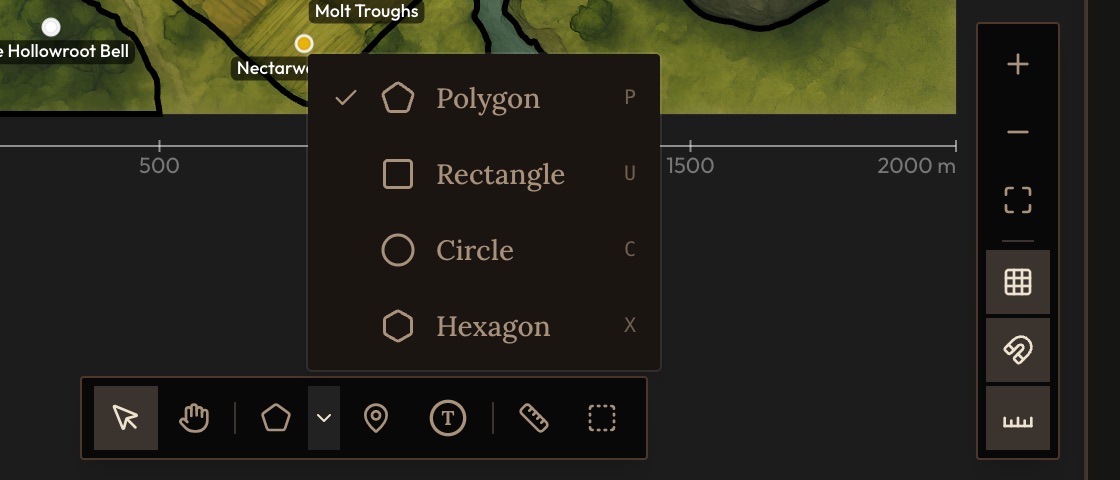
From left to right:
- Select (V) picks a pin, token or area.
- Pan (H) drags the map around. Holding Space pans with any tool.
- Area draws a region. The arrow beside it picks the shape: Polygon (P), Rectangle (U), Circle (C) or Hexagon (X). The button remembers your last pick, and the shortcuts always work.
- Pin (M) marks a place.
- Token (T) marks a character or creature.
- Measure (R) measures distances in the map's scale.
- Select several (S) drags a box around elements to move them together.
The buttons at the bottom right zoom in and out, fit the map to the view, show or hide the grid, turn snapping to edges on or off, and show or hide the scale rulers.
Drawing areas
Use areas to claim part of the map: a kingdom, a district, a forest, a room. An area linked to a location becomes that place on the map.
- Polygon (P). Click to place corners, or hold the mouse down and draw freehand. Retrace over your line to erase it, and press ⌘Z to take back the last segment. Close the shape by clicking your first point. Corners snap to nearby shapes, so neighbouring regions share clean borders.
- Rectangle (U). Drag to draw. Hold Shift for a square and Alt (Option) to rotate.
- Circle (C). Click the centre and drag out the radius.
- Hexagon (X). On a hex grid, click a tile to fill exactly that tile, and Shift-click to keep placing tiles. Drag to draw a hex of any size, and hold Alt (Option) to rotate it. New hexes match the grid's pointy-top or flat-top layout.
Select an area to change its Fill Color, Stroke Color and Stroke Width, or give it a Fill Image (a forest texture, a faction's banner) with its own position, scale and opacity. Set its Linked Location to tie it to a place. When you finish drawing, Craft asks which location to link ("Link area"). Create new location makes one on the spot, with a switch to generate its own map too. An area with no linked location has a Create Nested Area Map button that generates a detailed, zoomed-in map of that region and links it to the area.
Pins
Pins mark places too small to outline: a shop, a shrine, a cave mouth. Press M, click the map, and Craft asks which location to link ("Link pin"). Create a new location, pick an existing one, or choose "Skip — no link" for a plain marker with a label. A pin has a single Color (yellow by default) and a Position, shown as a percentage of the map's width and height.
A pin or area can also be a way out of this place, such as a door, a stair or a gate. That's its Exit setting, covered in Exits and Linked Locations.
Tokens
Tokens are for characters and creatures: the innkeeper behind the bar, the council at their table, a monster in its lair. Press T, click the map, and link a character file, or skip the link and give the token a label ("Goblin 3"). Its Footprint sets how big it is: Visual (a plain marker), Grid (how many squares wide and tall it is) or World (its real width in the map's units).
A token on a location's map is where that character is. Characters start a game where their tokens are, join the scene when the party arrives there, and are found there when the story goes looking for them. See How the GM Uses Your Maps.
Selecting and editing
Click an element with Select to open it in the side panel. A small bar also appears over it with quick actions: Open map (or Open parent map), File, Link (for an unlinked element), a lock, and Remove from the map. Right-click an element for View, Lock element, Delete element and Copy coordinates, plus Add pin here and Add token here inside an area. Right-clicking empty canvas offers Add pin and Add token.
Lock anything you've placed so you can't drag it by mistake. A locked element can still be selected and edited in the side panel. Removing an element is instant and shows an Undo button, and ⌘Z undoes up to 100 steps.
You can also paste an image straight onto the map as an overlay (a label, a ship, a drawn-on detail) and set its opacity, position and size in its Image tab.
The On this map list
The list on the left shows everything drawn on this map. Search it with "Find on …", click an entry to find it on the map, and use the map button beside a place to open its own map. A pin or area linked to a file that no longer exists is flagged. At the bottom, Not on this map yet lists places that belong inside this one but have no pin here; its Place button drops a pin already linked.
Moving between maps
Double-click a place, or use Open map on its selection bar, to go into its map. The breadcrumb at the top left walks back up ("Go up to …"). Opening a place with no map of its own shows its parent's map, with a note saying so ("Viewing …'s map").
Use parent map (under Behavior, in the area's or pin's panel and in Map settings) says a place has no map of its own and uses the map it's drawn on. Turn it on for small places that don't need their own view, such as a waystone or a market square, and leave it off for anywhere people will fight, sneak or explore room by room.
Map settings
With nothing selected, the side panel shows Map settings. Each section starts closed with a one-line summary.
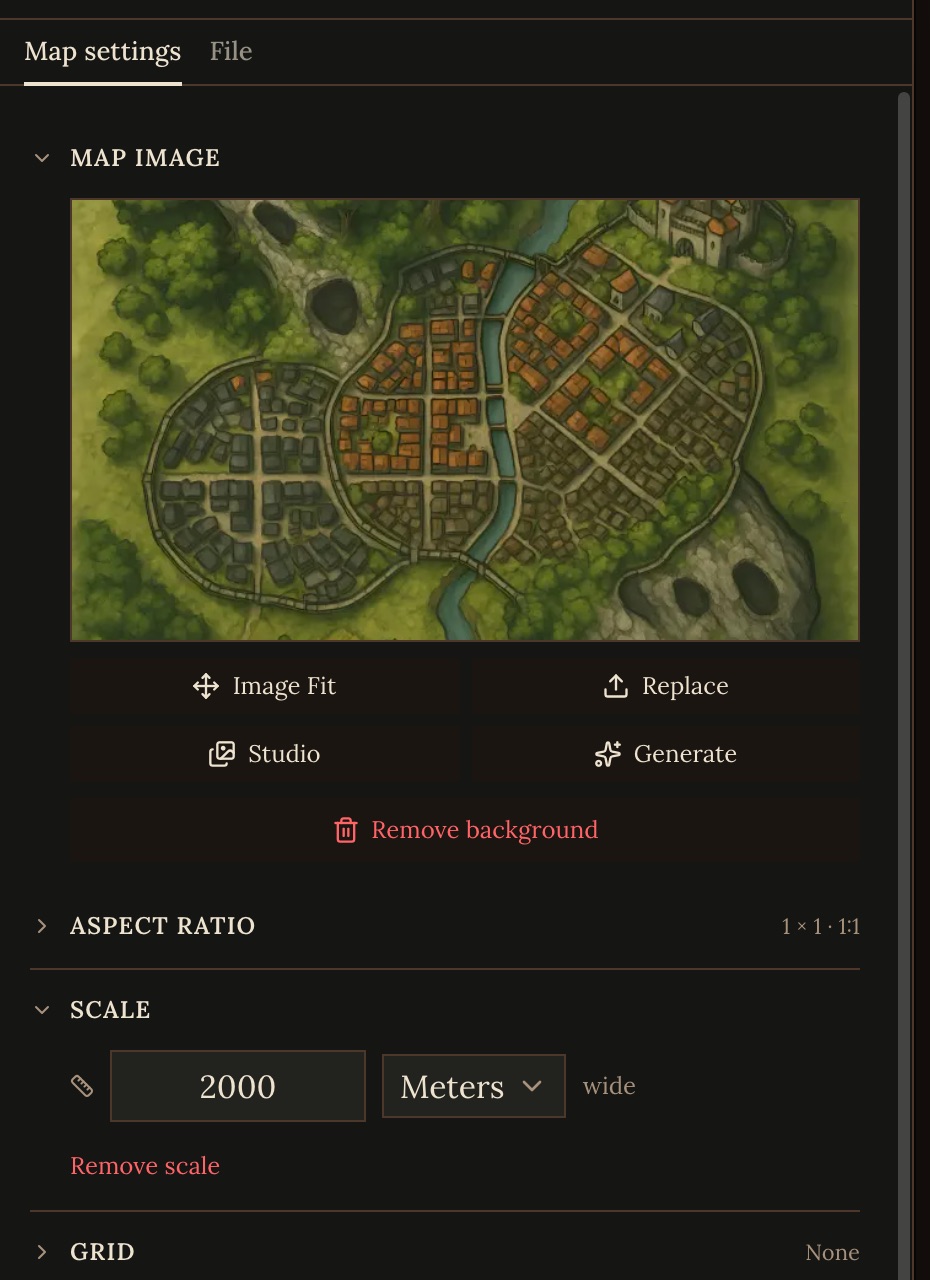
- Map image. Upload or replace the background, pick one from the Studio, or Generate one. On a place traced as an area on its parent's map, From parent generates the image from that part of the parent map. Image Fit moves and scales the image inside the frame. New locations also offer "Generate map image" when you create them.
- Aspect ratio. 16:9, 4:3, 1:1 or 2:3. Match your image so pins land where you put them.
- Scale. How wide the whole map is, such as "2000 m wide" or "75 ft wide". Set it on every map: the GM uses it for distances, travel times and fights.
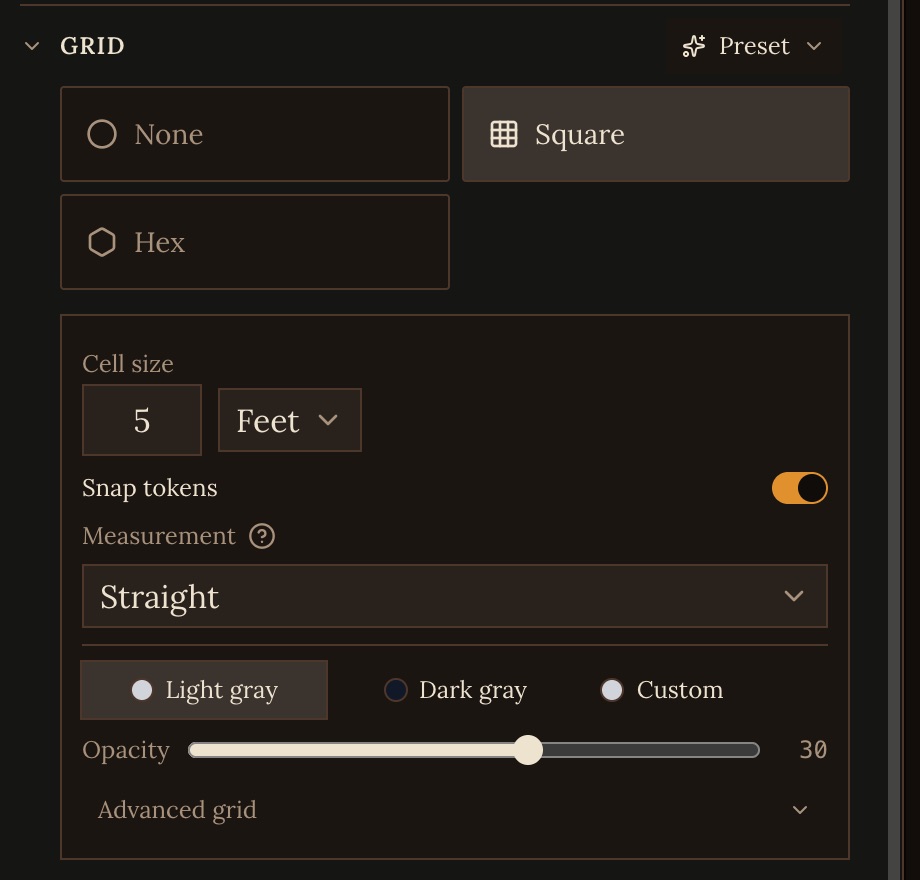
- Grid. None, Square or Hex, with presets for common systems, cell size, Snap tokens, and how diagonal moves are measured (Straight, 5e, PF2e, Taxicab or Hex). Colour, opacity and the grid's origin are under the same section.
- Display. Tidy overlapping markers fans out tokens that share a spot and merges pins that cover each other.
- Boundary. Draw boundary limits how far the map can be panned, which hides unfinished edges of the image.
The This place group is about the location itself:
- Transport makes the place a ship, caravan or other vehicle.
- Linked locations lists the places linked to this one without a spot on its map.
- Behavior holds Use parent map.
- Root map (on the root map only) picks which location is the world map.
Transport and Linked locations are covered in Exits and Linked Locations.
View mode and saving
View at the top shows the map as players see it, without the editing tools or the linked-location badges, so hidden ways stay hidden. Switch back with Edit.
The map saves itself a moment after each change. The status at the top reads Saving…, Saved or Not saved. ⌘S saves right away, and clicking a failed save tries again.
Ideas worth borrowing
- Build only the levels you need. A one-shot can live on one tavern map. A galaxy-spanning campaign can stop at its planets.
- Mix scales freely. One map can be 100 miles wide and the next 30 feet. Each map's scale is its own.
- Leave some shapes unlinked. Outline a mountain range, weather zone or faction's territory without making a location for it.
- Texture regions. A Fill Image turns a flat region into forest, dunes or a faction's colours.
- Use a vehicle as a place. A ship or caravan can be a transport with its deck plan as its map. See Transports.