
Starting Your First Project
Where projects come from
Everything in Craft starts with a project. A project is your workspace for building a world or a system. These projects hold your folders, files, file types, settings, and any maps or images you generate. You can create one from scratch, build on a published system, install someone else’s work as a starting point, or bring over a world from Friends & Fables. This guide walks through each of those paths.
Worlds and systems
Every project is one of two things, chosen when you create it and changeable later in Settings → Project:
-
World – A playable setting with content: your world, your characters, your campaign. Most projects are worlds.
-
System – A rules framework or SRD that exists for other people to build on. Systems can’t be played directly; instead, anyone can use a published system as the starting point for a new project of their own. Systems are always clonable for that reason.
Creating a new project
From anywhere in Craft, click + New Project in the left sidebar. This opens the Start from a system page: a catalog of published systems you can build on, with featured picks up top and the community catalog below.
Pick a starting point
-
Start from a system – Browse or search the catalog (the filter chips narrow it by rules style, dice, and tone), then click a system to preview what’s inside: its file types, content, and author. Creating from a system copies it into a new project of your own, so you get its rules and structure without touching the original.
-
Start from scratch – The button in the page header. Best when you have a specific setting in mind, or when you want to learn how Craft fits together by defining your own file types as you build.
-
Import Project – Also in the header; brings in a workspace zip export or an external dataset. See CDF Import & Export.
Name your project and choose its type
-
Name – A short title that shows up on cards, in the sidebar, and on your project page. You can change it later.
-
World or System – What this project is. Pick World for a playable world; pick System if you’re building a rules framework for others to start from. You can change this later in Settings → Project.
-
Click Create when you’re ready. Craft drops you into the new workspace.
Your first steps
A new project opens on its First Steps checklist: a short list of things to do first, like adding cover art, making your first character, setting up your world map and asking Orbit for help. Each step's button takes you straight there. A project built on a system shows the checklist that system's author wrote for it. Close the checklist whenever you like, and reopen it from Settings → First Steps.
Talking to Orbit about your world
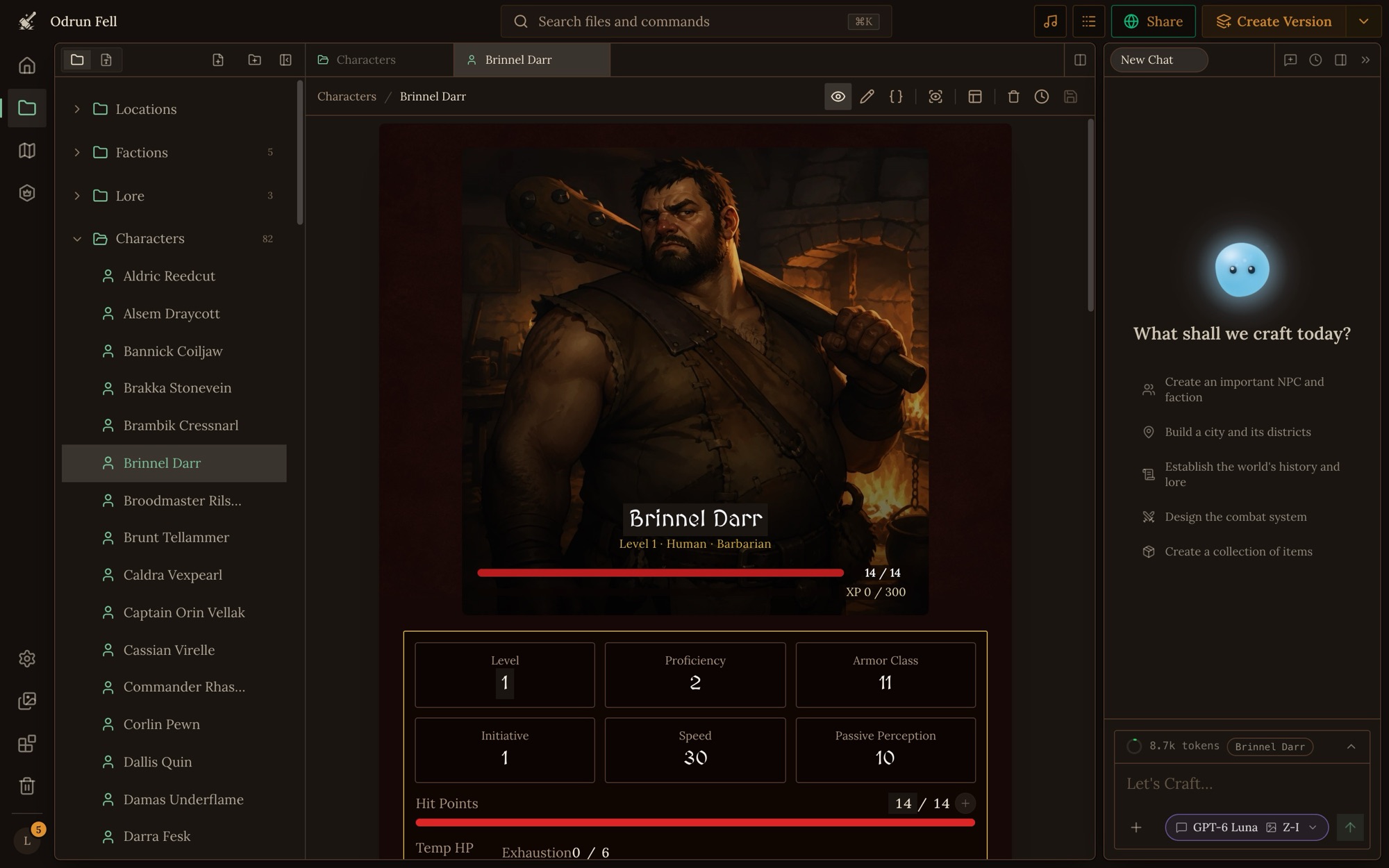
Orbit is your world-building partner. Open it with the Orbit button at the bottom right of the workspace, or press ⌘J, and it opens in a panel on the right with a starter list of suggestions. Orbit can ask you questions, set up file types, generate locations and characters, and help you turn a loose idea into something playable.
Some good first prompts to get a project off the ground:
-
"I want to make a [your genre or system] game about [premise]. Help me figure out what I need."
-
"What file types should I have for a [setting type] world?"
-
"Generate a starter region with three locations and a couple of factions."
Orbit will create files, folders, and file types as it goes. You can review every change in the panel, undo what doesn’t fit, and steer the conversation back when something drifts.
Setting up your Game Master
How the GM runs your world lives in the Game Master place, the crowned die on the workspace rail. Give the GM a name, a portrait and a voice, then write its GM Instructions: your world's premise, its tone, your core rules, and rulings for the moments that need them. Keep them short, and write them yourself: you know what you want from your world better than any AI does.
See The Game Master for the place itself, and Writing GM Instructions for how to write rules the GM follows.
Publishing your own system
Built a rules framework others should start from? Set your project’s type to System in Settings → Project, then publish it publicly (see Publishing and Releases). Once published, it appears in the create-project catalog for everyone, and every project created from it records yours as its source. A few things to know:
-
Tags – When you publish, Craft reviews your project and picks its tags (rules style, dice, genre, tone). Tags become the filter chips people use to find your system in the catalog. If a tag is wrong, correct it in Settings → Discoverability.
-
Cloning is always on – Systems exist to be built on, so published systems are always clonable.
-
Systems aren’t playable – Other people can’t start a game inside your system directly; they create their own project from it first. You can still play test it yourself as the owner.
Moving a world from Friends & Fables
If you already have a world in Friends & Fables, follow Moving a World from Friends & Fables to Craft. That guide covers exporting from Fables, importing into Craft, and what to check once your project lands.