
The Game Master
The Game Master place holds everything that shapes how the GM runs your world's games, apart from the world's files. Open it from the crowned die on the workspace's left rail.
Its pages are listed down the left. The GM's portrait and name at the top open its profile. Under them are what the GM follows: Instructions, Tracker templates and Player options. Last come two pages that show what the GM is given: the System prompt and the Instruction tester. The prompt budget sits at the bottom of the list.
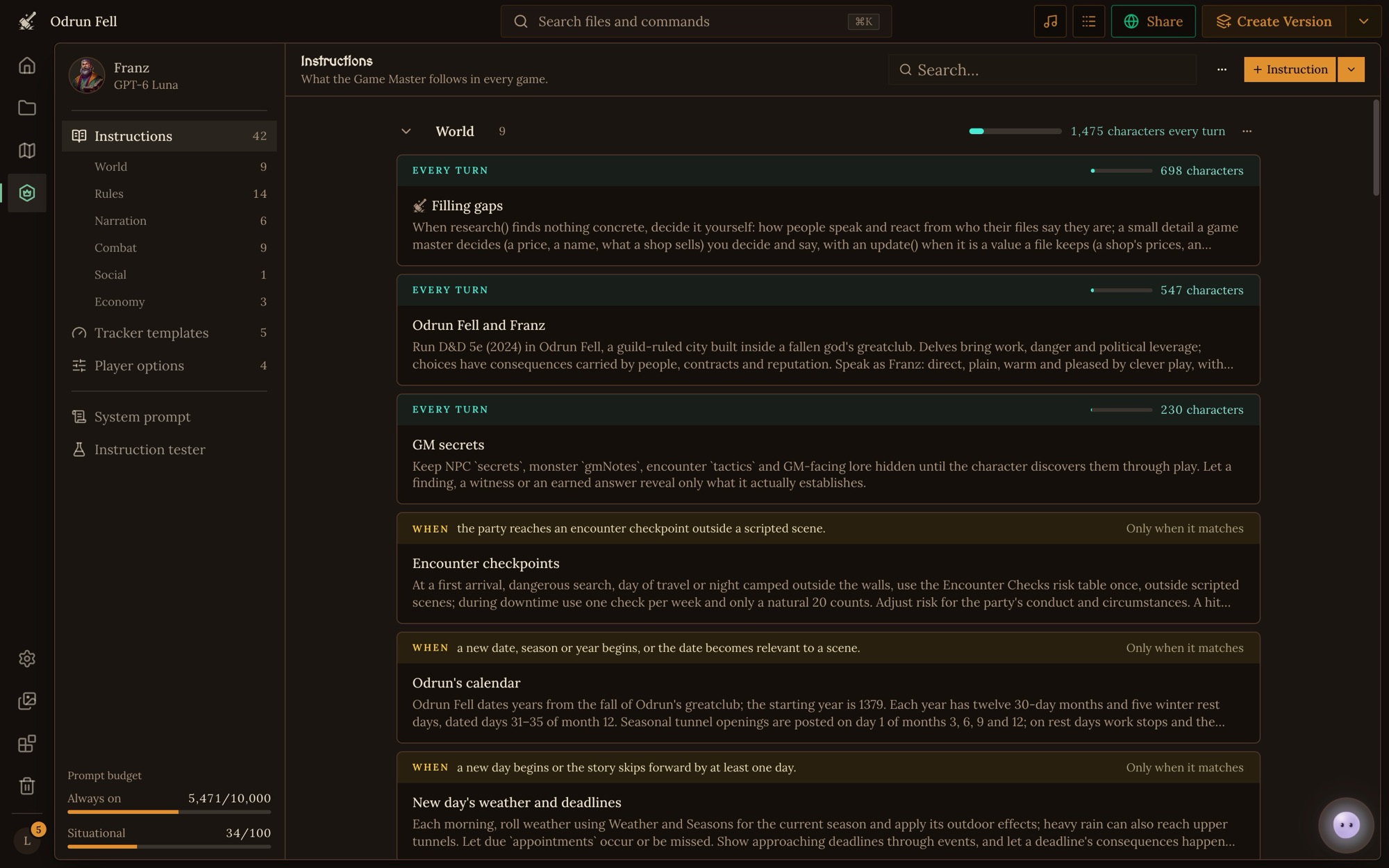
This page is the reference for each part of the place. Writing GM Instructions covers how to write instructions the GM follows.
The profile
Click the GM's portrait and name at the top of the list to open its profile:
- Portrait. Upload or generate the GM's picture. The expressions strip on the same page adds its other faces, as for any character (see Character Expressions).
- Name. What players see the GM called, up to 50 characters.
- Voice. The voice narration is read aloud in. The play button beside it plays a sample.
- Recommended AI Model. Shown to players in the game lobby as your pick for this world. Players can still choose any model, and models marked Slow can't be recommended.
- GM tools. The Roll tool shows the player a dice roller when the GM asks them to roll. Turn it off and the GM rolls for the player's character too. See Dice and Rolling.
Click Save when you're done. Everything else in the place saves as you go.
Instructions
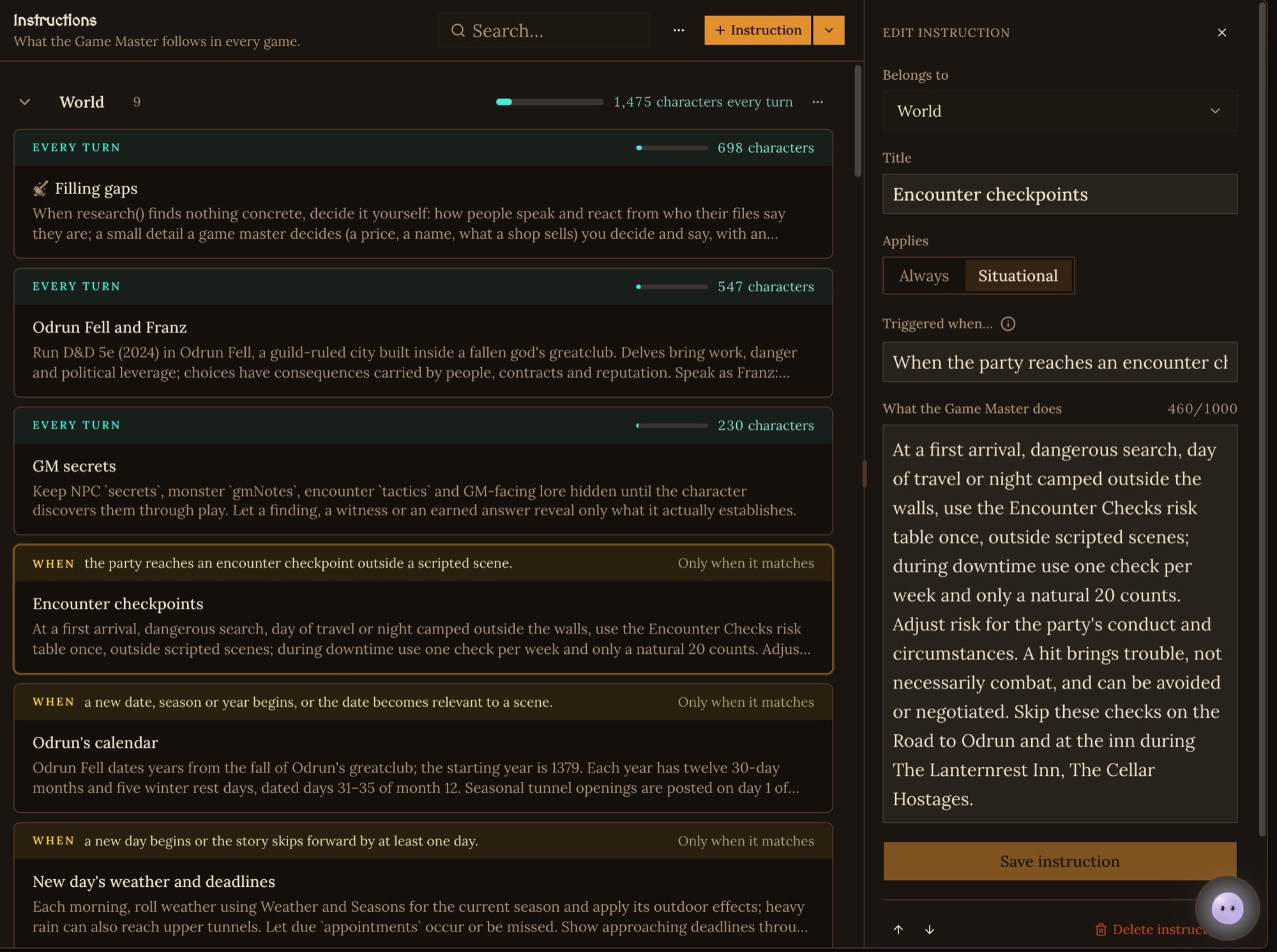
Instructions are your world's rules for the GM: the premise, the tone, your core game system, and what to do at particular moments. Every game of your world gets them. Click a card to open it, or click + Instruction to add one. Each instruction has:
- Belongs to. The section it sits in, or a player option's choice. Type a new name to make a section on the spot.
- Title. Heads the instruction in the GM's prompt. An always on instruction needs one.
- Applies. Always or Situational.
- Triggered when… For a situational instruction, the moment it's for, like "When the player character reaches 0 HP".
- What the Game Master does. The instruction itself.
Always and situational
An always instruction is in the GM's system prompt on every turn. Keep these few: the premise of your world, the voice and tone, your core roll, and the rules no turn may break. Each one you add makes the others a little weaker.
A situational instruction is given to the GM only on the turns its moment comes, right beside the player's latest message. That's where the GM pays the most attention, so a rule that only matters at certain moments works better as situational, even if that moment comes up often.
How situational instructions are picked
Before every player turn, a quick check reads the player's move, the GM's last reply and the scene. It asks of each situational instruction whether its trigger is happening now. The ones that match, up to 5 in a turn and the likeliest first, are given to the GM for that turn only. The rest stay out of the way, so a world can hold many rules without crowding any one turn.
Write a trigger as a moment you could see in the story, not a keyword: "When someone is grappled" or "When the player tries to pick a lock". Then try it with the Instruction tester.
Sections
Instructions sit in named sections, and the GM reads them in the order they appear. Craft's own sit in Narration, Rules and World. To add a section, use the arrow beside + Instruction and pick Section, or type a new name under Belongs to. Rename a section by clicking its name, and use its ⋯ menu to move or delete it. While the Instructions page is open, its sections are listed under it on the left so you can jump to one.
Craft's own instructions
Every world starts with a few of Craft's instructions, marked with the Craft hammer: Player agency, A good turn, Places, not squares, Journeys, not timetables, When to roll, Player moves (situational) and Filling gaps. They cover what every game needs, so you rarely have to repeat them.
- While you leave one as it is, Craft keeps it up to date in your world.
- Change it and it becomes your world's own copy, and Craft's updates no longer reach it. Use Craft's version puts Craft's current text back.
- Remove from this world takes it out. Restore, in the toolbar, brings back one you removed.
The prompt budget
The bottom of the list shows two meters:
- Always on counts the characters of every always on instruction, Craft's included, up to 10,000. Trackers don't count.
- Situational counts situational instructions, up to 100.
Both count the largest game a player could pick: the longest choice of each pick-one player option, and every choice of the others. A meter turns red at 85%, and over the limit your changes can't be saved until you trim them. Each section's header and each always on card show their share of the budget.
Tracker templates
Trackers keep count of what the story depends on: the time, objectives, a fight's turn order, a ticking clock, your standing with a faction. The Tracker templates page holds what each one starts as when the GM puts it in play. See Trackers.
Player options
Player options are choices players make about how their game runs, like response length or difficulty. Each choice brings its own instructions, and only the picked choice's go to the GM. See Player Options.
System prompt
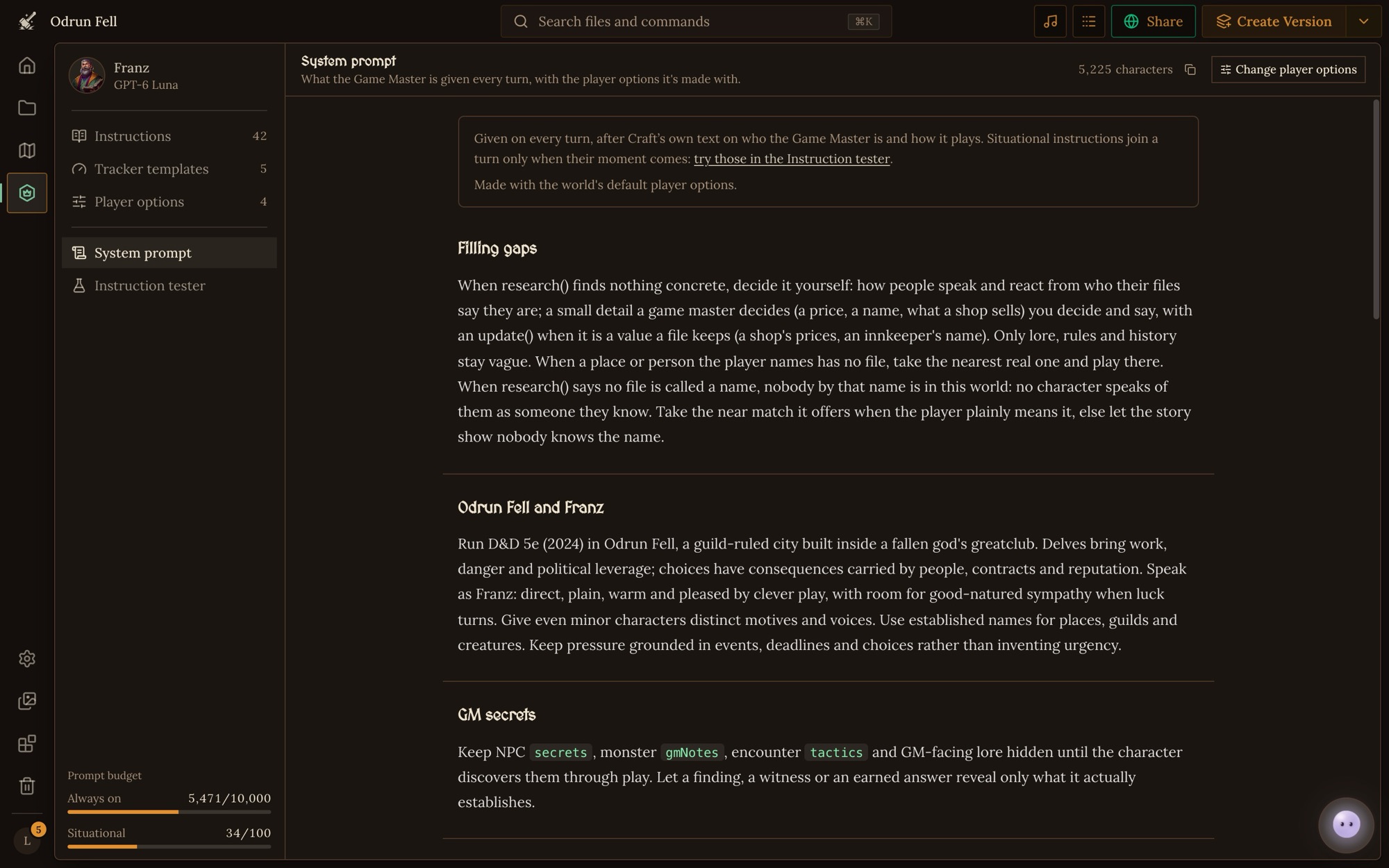
The System prompt page shows what the GM is given every turn: your always on instructions, section by section, exactly as the GM reads them, then the list of trackers the game keeps. A line at the top says which player options it's made with.
Click Change player options to pick as a player would and watch the prompt change. In a world nothing you pick here is saved. Use the copy button to copy the whole prompt.
Instruction tester
The Instruction tester shows which instructions a moment would bring into a turn. Write what a player does under What the player does and press Test (or Enter). Leave it blank to try an example.
It asks about every situational instruction, every tracker, and every player option choice's situational instructions, picked or not. What came up is listed first in each group, with how sure the check is. Click a row to open that instruction, fix its trigger, and test again. The tester uses your unsaved changes, so you can try a trigger before you keep it.
Only the world's editors can run it, up to 20 tests a minute and 300 a day.
In a game
Each game keeps its own copy of the instructions, tracker templates and player options, taken from the world when the game starts. The game's owner can open the Game Master place from the game's workspace, or click Customize under Quick settings → Gameplay, and change them for that game alone. The pages then read "in this game" instead of "in every game".
Changes apply from the next turn, and the GM is told what changed. Editing a tracker template doesn't change a tracker already in play: change that one from the trackers panel in the game.
Copying instructions between worlds
The ⋯ menu in the toolbar has Copy as JSON, Download JSON and Import JSON…. Export from one world and import into another to reuse a set of rules.
Limits
| What | Limit |
|---|---|
| Always on instructions | 10,000 characters in all, Craft's included, trackers not counted |
| Situational instructions | 100 |
| Situational instructions given in one turn | 5 |
| One always on instruction | 2,000 characters |
| One situational instruction | 1,000 characters |
| Instructions in all | 200 |
| Sections | 30 |
| Player options | 9, Craft's included, with up to 8 choices each |
| Instruction tester | 20 tests a minute, 300 a day |
With Orbit or the CLI
Orbit, the project assistant, can write and change instructions, player options and trackers for you. See Orbit.
In a cloned workspace, they live in the project file's settings, under
settings.gameOptions. The
Command Reference covers
editing and pushing them.
Changed in GM Harness 2
Files with the GM Instructions designation are deprecated, and the GM doesn't read them. Write your rules here instead. The GM's personality setting is gone too: put the GM's voice and tone in an always on instruction. A world can now have up to 100 situational instructions, up from 20 triggered ones.