
Dice and Rolling
When your game calls for chance, Craft rolls real dice: physically simulated 3D dice that tumble across the screen and settle on a result. This page covers how rolls happen during play, the notation the dice understand, and how to change the way your dice look.
Three ways dice get rolled
- The GM rolls. Enemy attacks, damage, saving throws, other characters' checks, random tables: the Game Master rolls these itself. Each roll shows as a dice card in the reply, with the dice, the total and the outcome, and plays out on the map.
- The GM hands you the dice. For your character's checks, saves and attacks, the Game Master asks you to roll, and its turn waits for your dice.
- You roll on your own. The + menu beside the turn input has Roll dice, which opens a dice builder. Pick a die, set the count, choose advantage or disadvantage, add labeled modifiers, and attach an optional message. The roll becomes your turn, and the GM reacts to it.
When the GM asks you to roll
A roll request appears over the turn input with what's being tested ("Kira, roll Stealth"), why the roll matters, the number you're rolling against when there is one ("vs DC 15", "vs Spot Hidden 45 or lower"), and one button with the dice and your modifier, like Roll 1d20+5 · advantage. Press it and the dice tumble in 3D, then your roll goes to the GM.
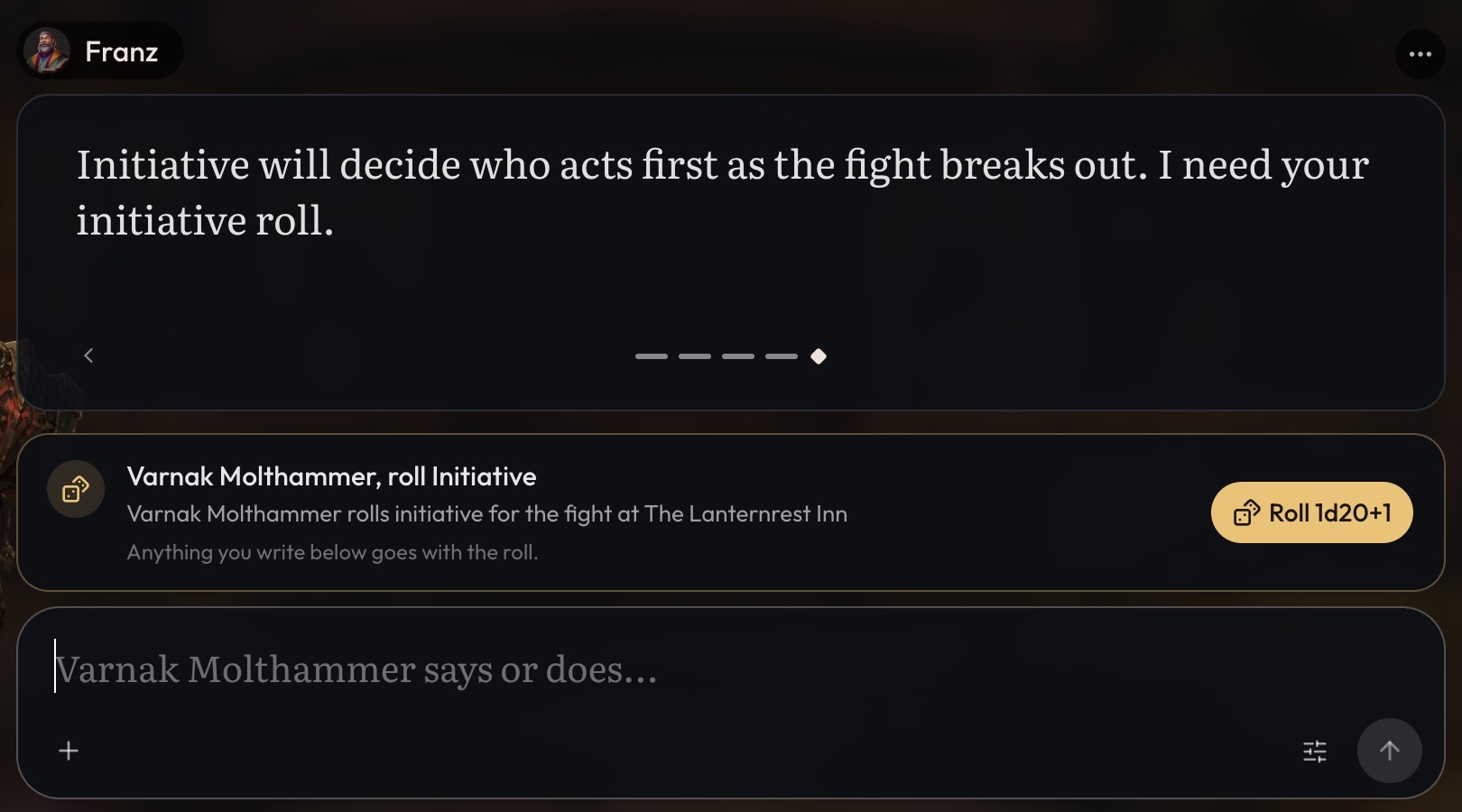
You can still write before you roll. Anything in the turn input goes with the roll, so "I hold my breath and slip past" and the dice reach the GM together.
Once the dice settle you see every die's face, the modifiers and the total. Dice dropped by keep-highest or keep-lowest are crossed out, and a roll with several labeled groups gets a breakdown of each group's dice and subtotal, so a pool of successes or an action-versus-challenge roll stays readable. The GM then reads the dice by your game's rules and narrates what happens.
Dice cards and the map
Every roll in a reply gets a dice card: who rolled, at whom, the dice landing, the total against the number to beat, and the verdict stamped on: Hit or Miss, Crit or Fumble, Resisted or Failed for a save.
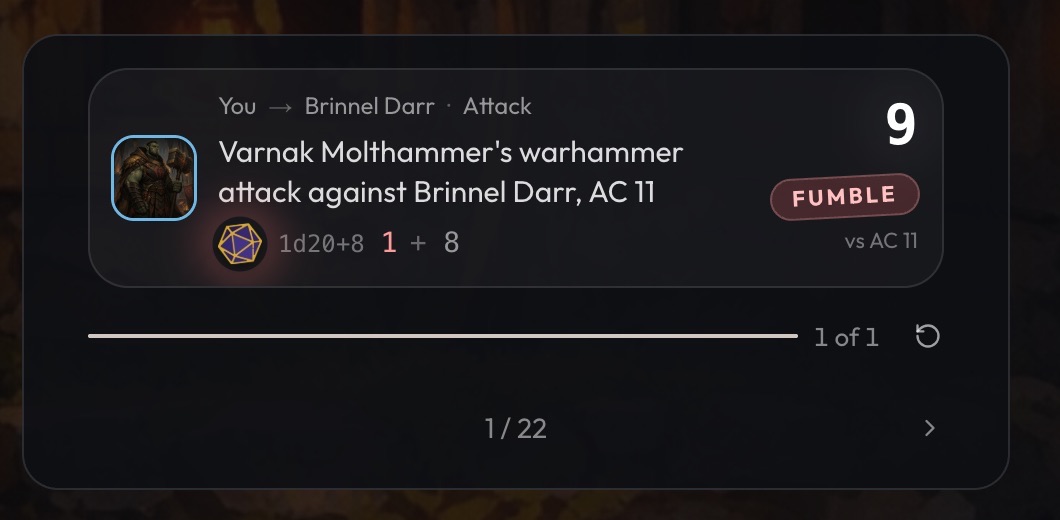
The same rolls play on the scene's map as you read:
- The dice tumble over the roller, and a pill shows the total against the number to beat ("17 vs 13"), or the number to roll under ("23 vs ≤45").
- An attack shows Hit, Miss or Crit over its target, and a hit jolts them.
- A save rings a ward around the saver that holds or breaks.
- A check shows what kind of check it is, like a magnifier for a search, and the people around react.
When a fight starts on a desktop, the map slides out beside the story. A check on its own plays quietly on the small map in the corner.
Dice notation
One notation drives everything, whether the GM writes it or you type it into the dice builder:
-
1d20: one twenty-sided die. The count is optional, sod20works too. -
1d20+5: flat modifiers. Label them to keep the math legible:1d20+2[STR]+3[PROF]. -
2d20kh1: keep the highest (advantage).2d20kl1keeps the lowest, and4d6kh3rolls four dice and keeps the best three. -
6d6[Pool]: a labeled dice group, for pool systems that count successes instead of summing. -
1d6[Action]+2d10[Challenge]: several groups in one roll, each labeled so they can be read separately. Groups can subtract too:1d20-1d4. -
4dF+2: Fate/Fudge dice, which land on +, − or 0.
The total is always the plain sum. In systems where the sum doesn't matter, like counting successes or comparing action dice against challenge dice, the GM reads the individual dice from the labeled groups instead.
3D dice and skins
Rolls render as physically simulated 3D dice for d4, d6, d8, d10, d12, d20 and d100. Unusual dice and very large handfuls skip the animation and show a plain readout. The roll itself works the same either way.
You can change how your dice look. Open your account Settings and find the Dice Skin card, or use the skin button inside the dice builder. Your pick applies to every game and every roll. The Default skin is always available; others, like Founders Edition, are unlocked through special grants and stay locked until you have them.
Turning player rolls on or off
Whether the GM hands players the dice is the Roll tool switch, under GM tools on the Profile page of the Game Master place. It starts on. The project's setting is the default for new games, and each game then carries its own copy. With it off, the GM rolls for the player's character too, and never asks the player to roll.
Making your system call for rolls
What to roll, and when, is your game's design. Put your core roll in an always on GM Instruction, with its dice: "Roll 2d6 plus the stat against the difficulty." Then add situational instructions for the moments that call for something else, like "When a plan depends on timing, call for a Luck roll (2d6)." The GM uses your dice whenever your rules name them.
If your always on instructions name dice but never a d20, the GM won't roll a d20 out of habit: it rolls your dice instead. See Writing GM Instructions for how to write those rules well.
Roll-under systems
The GM decides, roll by roll, which side of the number succeeds, and the Hit or Miss, Pass or Fail stamp follows. Higher is better unless your rules say otherwise, so a roll-under game has to say it:
- State the direction in one plain sentence in an always on GM Instruction: "Skill checks are roll-under: roll 1d100, and the roll succeeds if it is equal to or lower than the skill."
- Name the number the way you would at the table, like "roll d100 under Spot Hidden" or "roll 3d6 under HT". The dice card shows it as "Spot Hidden ≤45".
- Add a worked example: "Skill 45: a roll of 23 succeeds, a roll of 67 fails. Low is good."
- If some rolls go the other way, say which: "Damage and initiative are roll high; every check is roll-under."
- Keep the rules consistent. A leftover rule that says "beat the target number" can win over the one that says roll under.
If a stamp still lands on the wrong side, tell the GM in your next turn ("that was a success, it's roll-under"). The tools behind this are on Agent Tools.