
Orbit, Your Personal Assistant
Who Orbit is
Orbit is the AI assistant built into every Craft project. It's there to help you build: turning a loose idea into a structured world, drafting characters and locations, writing your GM Instructions, designing layouts, even reorganizing your file tree. Orbit isn't the Game Master that runs your sessions. The GM stays focused on play, while Orbit is your collaborator outside of it.
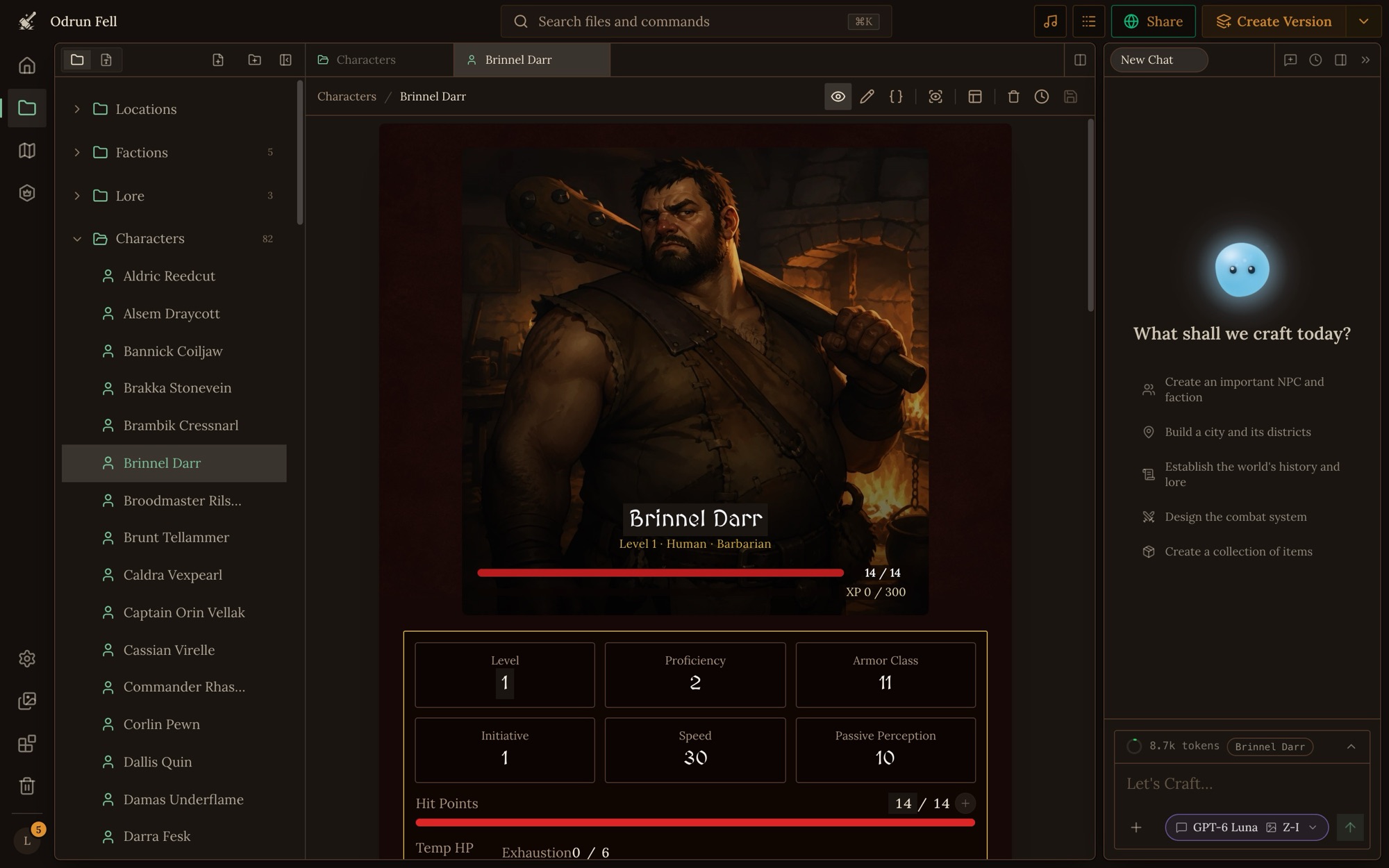
Opening Orbit in a project
Orbit lives on the right side of the project workspace.
- If the panel is open, it's already there waiting for you with a chat thread and an input at the bottom.
- If you've closed it, a floating circular Orbit avatar sits in the bottom-right corner of the workspace. Click it to bring the panel back.
- Press ⌘J (Ctrl+J on Windows) to open or close the panel.
Talking to Orbit
The chat input at the bottom of the panel is the front door to everything Orbit can do.
What Orbit can do for you
- Build out a world. Ask Orbit to set up your file types, generate a starting region, or draft NPCs.
- Set up the GM. Orbit can add and edit your GM Instructions: always on rules, situational rules with their triggers, player options and trackers. For the rules that matter most, it's still best to write them yourself (see Writing GM Instructions).
- Edit files. Tell Orbit to update a specific field, regenerate an image, or rewrite a description in a different tone.
- Organize. Orbit can create folders, move files between them, rename file types, and delete things you no longer need.
- Draw maps. Orbit can draw on your maps, mark exits and link places together. See Maps and Locations.
- Design layouts. Ask for a custom layout for a file type (for example "Make a character sheet with the portrait on the left and stats in a grid") and Orbit will write the layout for you. See Designing Layouts.
Agent Tools lists every tool Orbit uses to do this.
The model picker
- Each Orbit message uses whichever model is selected in the picker next to the Send button. The current default rotates as we add and retire models.
- Pick a smaller, faster model for quick edits and casual chat. Switch to a larger model when you want more careful writing or complex multi-file changes.
- Your last choice is remembered between sessions.
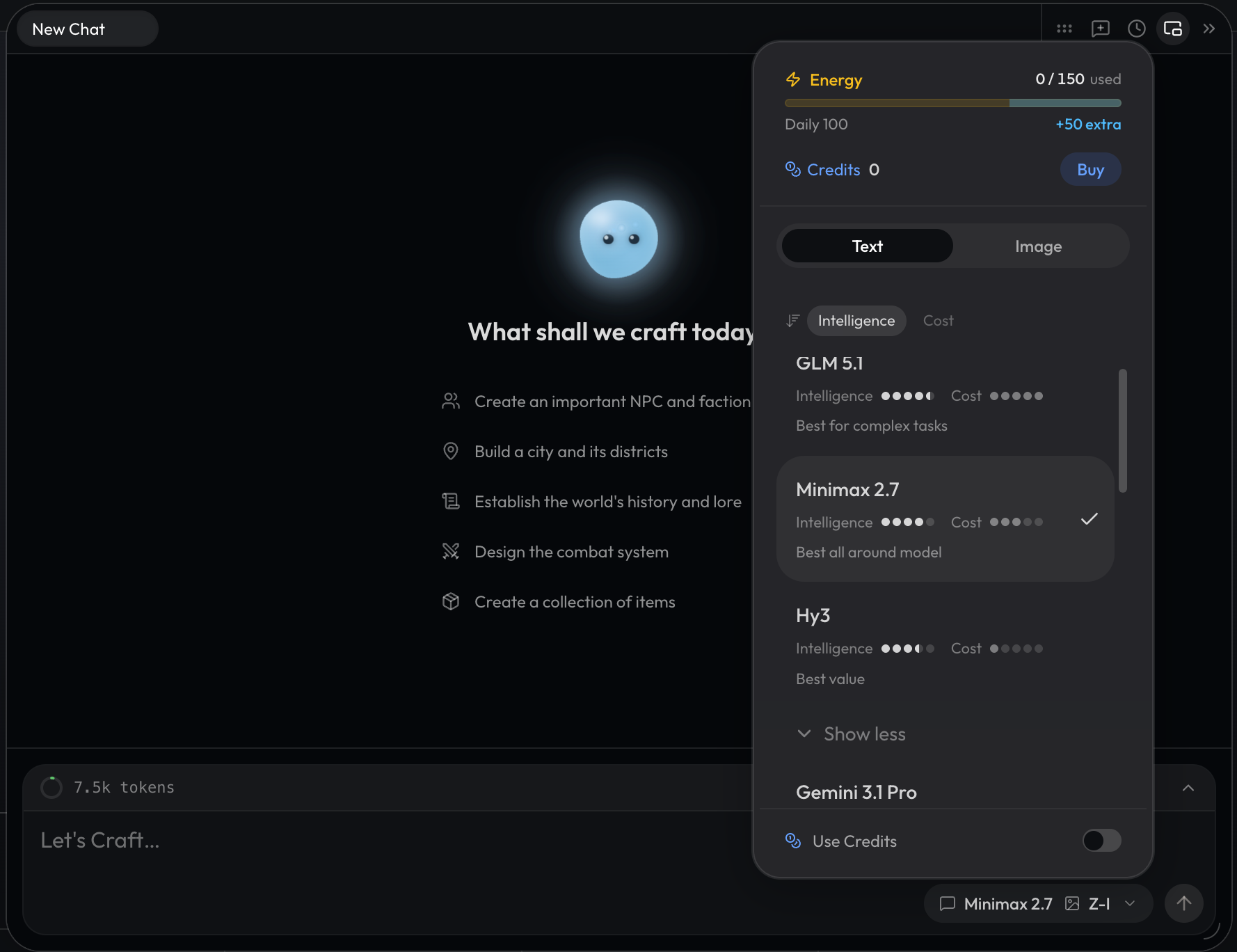
The Orbit panel toolbar
Your open chats sit as tabs along the top of the panel. On the right are:
- New chat: start a fresh conversation. Useful when you want Orbit to drop the previous topic and approach something with a clean slate.
- Chat history: browse past Orbit conversations. Each one is kept, so you can come back to the thread where you set up your factions a week ago.
- Assistant layout: dock Orbit as a Sidebar, or make it Floating over your workspace. A floating panel has a handle on the left to drag it around.
- Close assistant: collapse the panel back to the floating avatar.

Orbit during a game
Orbit is also in every game. Click Assistant, the Orbit icon on the game screen's rail, to open it in the side panel. This is your out-of-character channel, perfect for rules questions and lore lookups without breaking the story's flow.
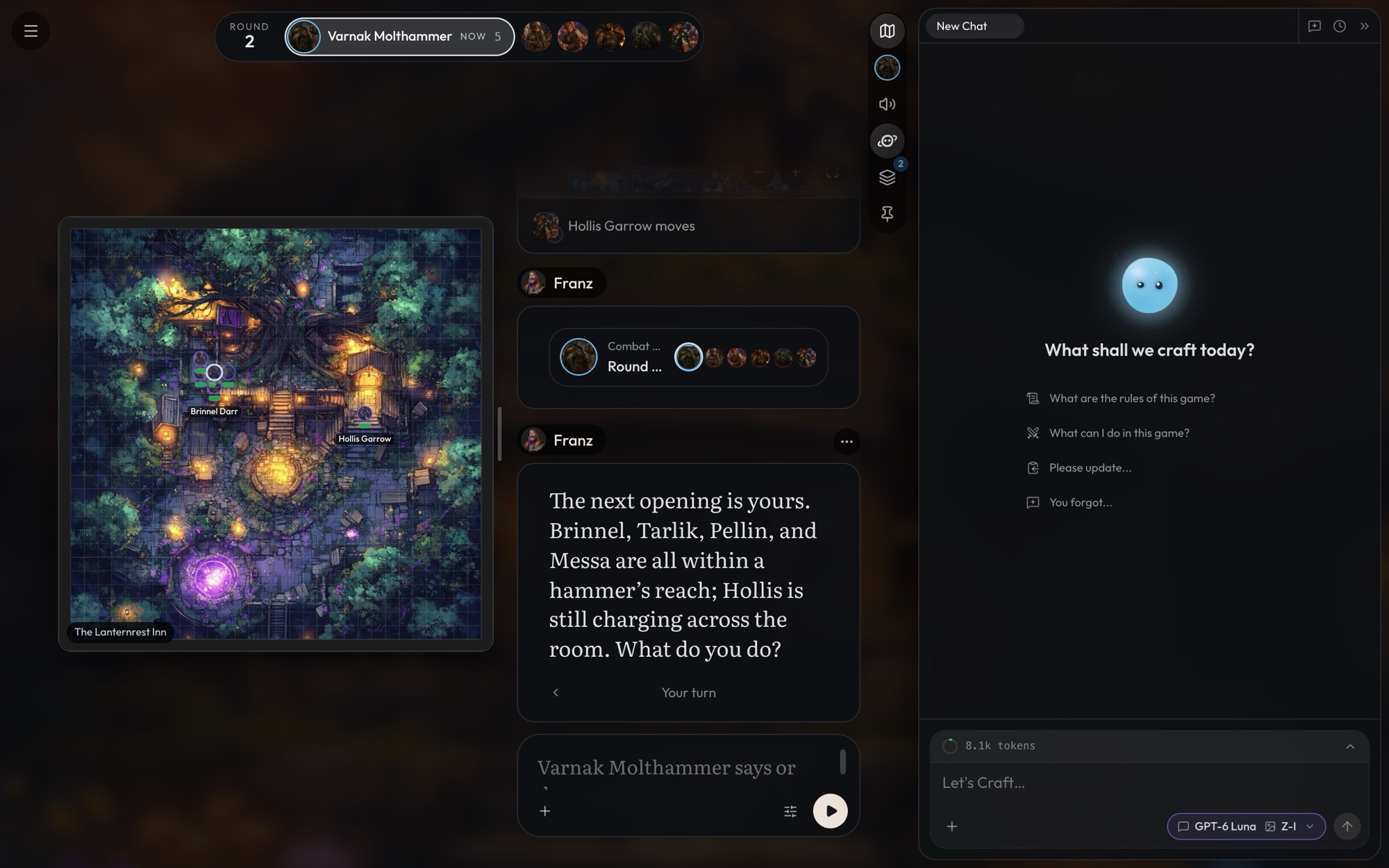
- Orbit reads the latest game messages, so it can answer questions about what just happened. It also sees the game's current state: where the party is, who's on the map, and the trackers.
- If you own the game, Orbit can change its GM Instructions and your player option picks. The GM is told about the change before your next turn.
-
Orbit can't change the current state: it can't move people on the map, put
someone into the scene or change a tracker. Tell the GM instead, out of
character, with
ooc:("ooc: Mira should still be at 12 HP"). Orbit can still write a new character's file, but bringing them into the scene is the GM's job. - Hit New chat whenever you change topics, so each question starts with a clean context.
When Orbit gets it wrong
Orbit is confident, which means it can occasionally invent something that doesn't exist or misread your project. A few habits that help:
- Push back. If Orbit says "there's no spell file for fireball" and you're sure there is, ask it to search again or tell it where to look.
- Review action cards. Every file Orbit creates or edits shows up as a card in the chat thread. Open the cards to confirm the change matches your intent before moving on.
- Report feedback. Every Orbit message has a Report feedback link at the bottom that captures the message and a screenshot. It's the fastest way to flag a hallucination or weird behavior to us.
- Don't paste bulk imports into Orbit. Imports go through the Import page as Workspace CDF zips, not the chat. Orbit can read files but isn't the right tool for bulk-loading content.