
Orbit
Orbit is the AI assistant built into every Craft world. It helps you build: it turns a loose idea into files, drafts characters and places, designs file types and layouts, writes GM instructions, draws on maps and tidies your folders. Orbit is not the Game Master. The GM runs play; Orbit works beside you, in the world's workspace and, out of character, in your games.
How it is used
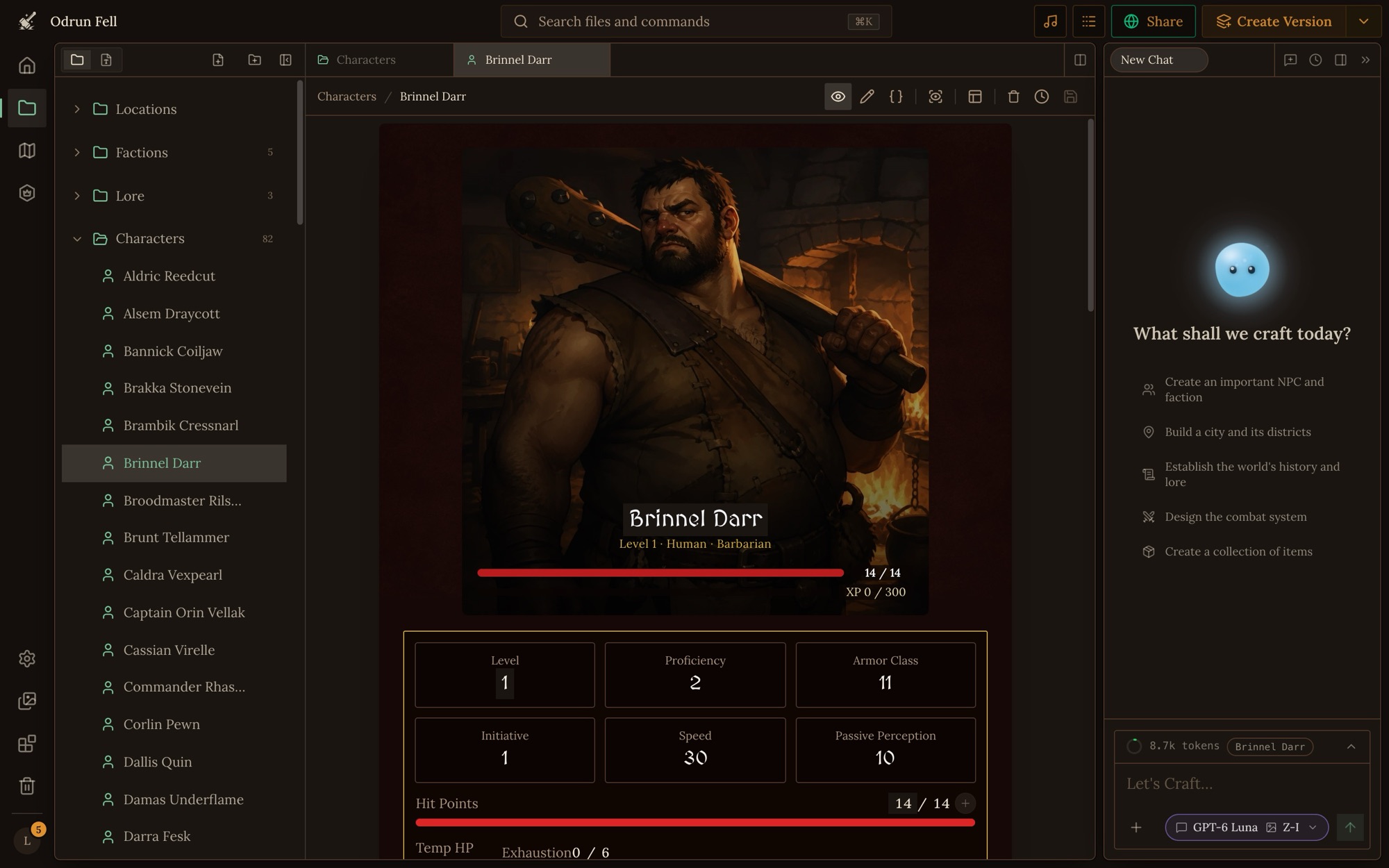
Open Orbit from the panel on the right of the workspace, or press ⌘J (Ctrl+J on Windows). When the panel is closed, click the round Orbit avatar at the bottom right. In a game, open Assistant in the side panel. You talk to Orbit in a chat, and it works with the same files, file types and settings you see.
- Chats. Each chat is its own conversation, and your chats are your own: people you build with have theirs. Past chats are kept in the chat history, so you can go back to one (a chat from Orbit's earlier version opens read-only). Start a new chat when you change topic. A fresh chat is cheaper and Orbit stays focused. The panel can sit at the side of the workspace or float over it.
- What Orbit sees. Orbit gets its own instructions, an overview of the world (its folders, files, file types and your instructions for Orbit) as it was when the chat started or was last summarized, and every message of the chat since then. Before your message it is also told the name of the file you have open, when that changed, and which files changed outside the chat since its last reply. It gets the open file's name, never its content, and only a file or a map tab counts: settings, a folder, packages, First Steps, a handbook and the trash all count as no file open. It reads anything else it needs itself. See long chats for what happens as a chat grows.
- Changes show as cards. Every file Orbit creates or changes appears as a card in the chat. Open a card to check the change. A change can be undone from its card, or ask Orbit to undo it.
- Questions. When a choice is yours, Orbit can stop and ask you, with options to pick from. It waits for your answer.
- Long jobs. One reply can take up to 50 steps and about 20 minutes. When it runs out, Orbit stops and says so. What it already changed stays saved. Ask it to carry on in a new message.
- Moderation. Every message is checked by an automatic moderation step before Orbit sees it (see the content policy).
What Orbit can do in a world
Anyone who can edit a world can ask Orbit to:
- Write and change files, one field at a time or whole, and create, move, rename and delete files and folders.
- Build file types: schemas, reference and computed fields, layouts and creation flows (see file types and layouts).
- Change the project's settings: its name, description, tags, visibility, page text, gallery, handbooks, prelude and image style. Colors, fonts and the cover's look are set in the app only.
- Write GM instructions (see GM instructions).
- Draw on maps: pins, areas, exits and tokens, and link places that have no spot on a map (see maps).
- Make images for files, when image generation is on (see images).
- Write and test scripts, in worlds that have scripts (see scripts).
- Look at pictures, yours and your files', when the chosen model can see images.
- Go back to an earlier version of a file or file type.
- Hand big jobs to subagents (below).
Orbit can't bulk-load content from a pasted dump. Import a workspace zip instead (see import and export).
What Orbit can do in a game
Orbit is in every game too, as your out-of-character channel: rules questions, lore lookups, fixing what went wrong, without breaking the story.
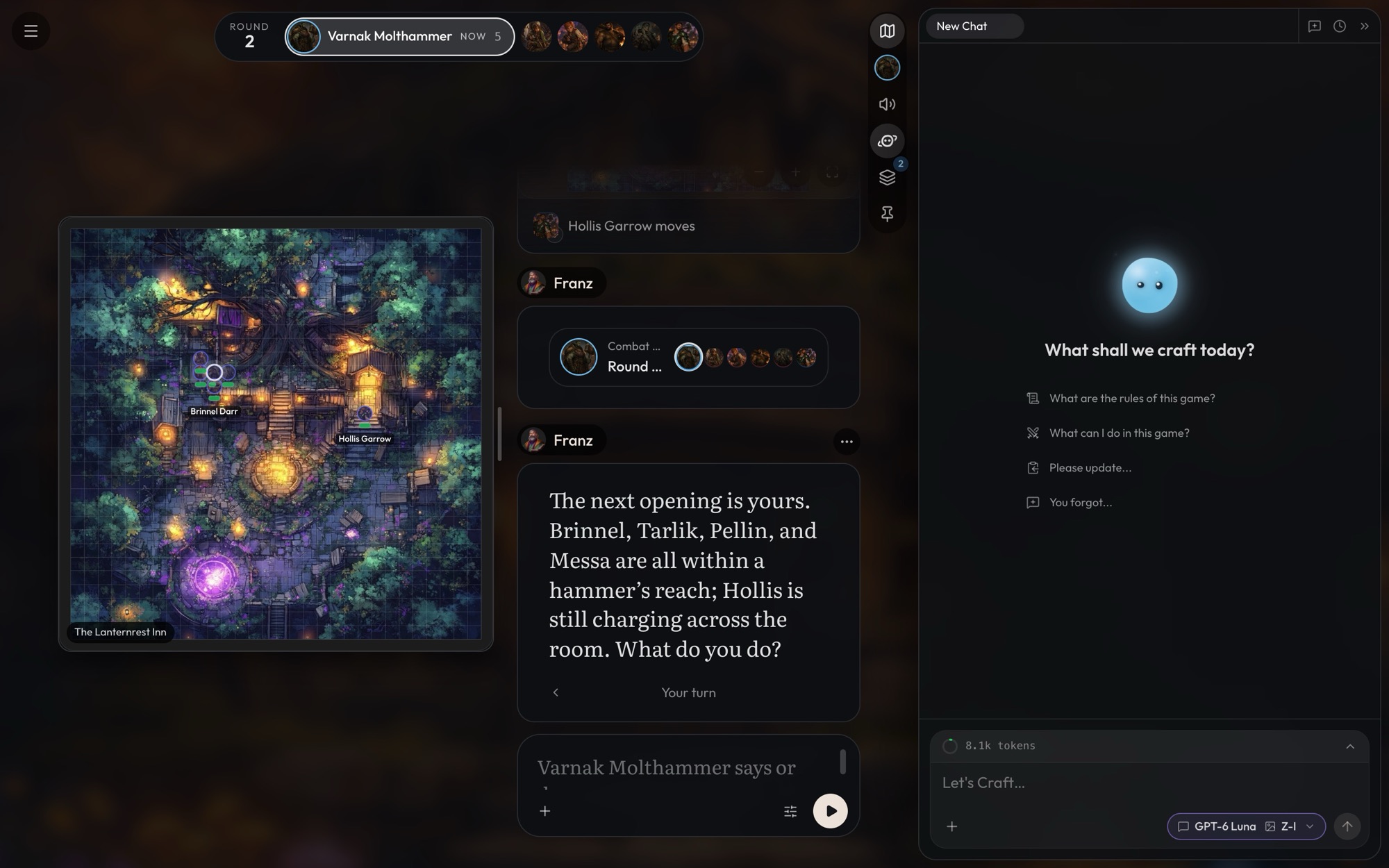
- It reads the game when it needs to. Orbit doesn't follow the story on its own. When your question depends on what happened, it reads the game's messages, newest first. It can also read the story-so-far summaries and search earlier play the way the GM does.
- A game has one player, its owner. In your game Orbit can change the game's files and its GM instructions and choices. It can also change the current state as you can on the play screen: the trackers, and who is on the map and where. The GM is told what changed at the top of the next turn.
- Where the party is changes only with a turn. Tell the GM where you go, or set out from the map.
- The world's handbooks and settings stay out of reach. In a game, Orbit can't read the world's handbooks, the Player's Handbook included, or the world's settings.
- Orbit can write a new character's file, but bringing them into the story is the GM's job.
See trackers for the current state. For questions about your own character and records (gold, gear, level, party, the rules), see your game.
Deletes and undoing
Orbit doesn't stop to ask before a change: what you ask for happens when Orbit makes the call.
- Deleting a file, a folder or a file type sends it to the trash. Restore it there, or ask Orbit to bring it back. See the trash.
- Deleting a handbook chapter can be undone: ask Orbit to revert the handbook, or restore an earlier version from the handbook's History.
- Deleting an instruction for Orbit can't be undone.
- Going back to an earlier version of a file or a file type (a file type goes back whole: schema, layout and settings together), and clearing a file type's layout, happen only when you ask.
Subagents
Subagents let Orbit hand a wide job to a team of small helpers. When the same kind of change applies to many files ("add a materials field to every gear item and fill it in", "check every character has a description"), Orbit plans the change and the subagents make it, in parallel. Orbit also uses them to read: in an audit, each subagent reads one part of the world in full and reports what it found, so the audit covers far more than one chat could hold.
- Orbit makes a plan. It looks at a few of the files and decides exactly what the change should be.
- It splits the job. Each subagent gets the plan and its own list of files: up to 24 tasks in one hand-off, with 8 working at once. A bigger job takes more than one hand-off.
- The subagents work. Each reads only its own files, makes the edits and reports what it changed. A panel under Orbit's message shows one row per subagent, live. Expand a row to see everything it did and its report.
- Orbit wraps up. It checks a few results and sums up.
This is faster and cheaper than Orbit editing every file itself, and the files never pile up in the chat, so the messages after the job stay cheap too. Orbit uses subagents on its own for jobs of more than about ten files, and whenever you ask for them.
What subagents can and can't do:
- They read, search, create and change files, move, rename and delete them, and make folders.
- They can't change the project's settings, make images, draw on maps, link places or run scripts. Orbit does those itself.
- They don't see your chat. Each one knows only what Orbit told it.
- Each has 20 steps, and all of them share the reply's 20 minutes.
Subagents are on by default. Turn them off, or pick the model they run on, in the Settings tab of that drawer. A small, fast model is usually enough: their tasks are narrow.
Models and cost
- The model. Each message uses the model picked next to the send button, and your last pick is remembered. A small, fast model suits quick edits and chat. A larger one writes more carefully and handles changes across many files better. Only some models can look at images.
- The image model and the subagent model are picked separately, in the Settings tab of that drawer. You can also turn image generation off there. On the free plan, when you aren't paying with credits, an image model outside the free ones is switched to a free one. Other reasons a picture doesn't appear are in images.
- The GM's model is not Orbit's. A game's GM runs on the game's own model (see picking a game's model).
- Cost. A message costs energy or credits, by the model and by how much Orbit reads and writes. The chat since its last summary is sent again with every message, so a long chat costs more per message. Images are charged as images. Core models are included without limit on Plus and higher plans, and Free and Starter accounts get a daily number of Core messages. Some models need a subscription.
- Seeing the cost. Each reply has a cost breakdown, with a Subagents line for what the helpers spent.
See energy and credits for prices and plans.
The context preview, in the drawer that opens when you click the token count above Orbit's message box, shows what is sent with your next message and how many tokens it is: Orbit's instructions, the world overview, the summary if there is one, and every message since. Use it to see why a chat has grown expensive, or what Orbit still has in view.
Instructions for Orbit
A world can keep standing instructions for Orbit: how to write for this world, which conventions to keep, what to check before a change. They live in the Instructions tab of the drawer above Orbit's message box.
- Always on, or with a trigger: an instruction with a trigger ("when writing a new faction") is read only when that applies.
- They come first. Where one disagrees with Orbit's usual way of working, Orbit follows the instruction.
- They are for Orbit only. The GM never reads them; how the GM runs play belongs in GM instructions.
- They belong to the world, not its games. Games don't use them.
- You can turn one off without deleting it. Orbit can write and change them for you, and can delete one, which can't be undone.
Skills
A skill is one of the guides, run by name. Orbit is handed the guide's steps along with your message, so it starts on the first step instead of deciding what to read. The skills are:
| Skill | Guide it runs | Where |
|---|---|---|
/build-map |
Building a map | a world or a game |
/feature-audit |
Craft feature audit | a world |
/file-type-audit |
File type audit | a world |
/fix-game |
Fixing a game | a game |
/instruction-audit |
Instruction audit | a world |
/map-audit |
Map audit | a world |
/place-tokens |
Putting characters on maps | a world or a game |
/build-world |
Starting a world | a world |
/debug-turn |
Turn audit | a world or a game |
- What you write after the name is the job. "/file-type-audit the Character type" audits that one type; the name alone starts at the guide's first step.
- A skill is its guide, not a copy. Change the guide and the skill changes with it. There is nothing a skill knows that its guide doesn't say.
- The name is optional. Orbit reads the same guide when what you ask matches it. Naming the skill makes sure it does, and saves the step of finding it.
Type / in the message box to see the skills offered where you are,
pick one, then finish the message and send it.
Long chats
Orbit keeps the whole chat, word for word, until it gets very long: about 100,000 tokens. After the reply that passes that, Orbit summarizes the earlier part of the chat into a checkpoint and keeps the newest part (about 12,000 tokens) word for word. The checkpoint holds the goal, your constraints and preferences, the progress so far, the decisions made, the next steps and the files Orbit read and changed. A later summary updates the earlier one.
- After a break. When you come back to a chat after about 30 minutes, and it has some length (about 16,000 tokens), the earlier part is summarized before your next message.
- In the panel. An "Earlier messages summarized" line marks each summary. Open "What Orbit remembers" under it to read the checkpoint. Once a chat has been summarized, a "Long chat" hint offers a new chat.
- A summary costs you nothing. And it makes each later message cheaper, since less is sent again.
- Details can be lost. The checkpoint keeps what matters for the task, not every word. A file's contents aren't in it, so Orbit reads a file again before changing it. Orbit also cuts long results it read in earlier replies, so it may read a file a second time. That is expected.
- "This chat got longer than the model can read at once". A reply that ends this way is summarizing the chat. Wait a few seconds and send your message again. If it happens again, start a new chat.
- Chats from before summaries are read-only. They were made on Orbit's earlier version, which is retired. You can still open and read one; to keep working, start a new chat.
Start a new chat for a new task, when the Long chat hint appears and the task has changed, or when Orbit starts repeating itself or forgetting. A new chat starts empty, so say again what matters: the files, the goal and anything you decided. Rules you want kept in every chat belong in instructions for Orbit.
When something goes wrong
- Orbit ignored the file I have open. Orbit gets the open file's name, not its content, and only when the open tab is a file or a map. Name the file, or say "read it first".
- Orbit forgot something from earlier. Open "What Orbit remembers" to see what the summary kept, then say again what was lost. If it's a rule for every chat, write it as an instruction for Orbit.
- The reply stopped early. One of three limits ended it: the 50-step limit, the time limit of about 20 minutes, or the same call failing 4 times in a row. The reply ends with a note saying which. What Orbit changed before the stop stays saved; when a call kept failing, nothing past it was saved. Say "continue", or ask for the job in smaller parts.
- A change failed or was refused. Orbit's changes are checked as a save in the app is checked, and a refused change saves nothing. Orbit then makes the smallest fix the error points to. Ask it what the error said if it doesn't tell you.
- Orbit can't see all of a big file. It reads a big file as an outline and then the parts it needs, and a very long text field as its start and end. Point it at the part you mean.
- Pictures didn't appear. See when a picture doesn't appear.
- Something else. Use Report feedback under the reply and say what happened. The report includes a screenshot and the reply's ids, so we can look into it.
Doing it well
- One topic per chat. Start a new chat for unrelated work. It costs less and keeps Orbit on task.
- Say the scope. "Only the stats block", "just these three files". Orbit changes what you ask and leaves the rest.
- Split big audits and redesigns. Go one file type at a time, or let subagents or a script spread the work. Reading a whole world file by file in one reply runs out of steps.
- Big, repetitive jobs: let subagents do them. Keep subagents on and ask for the change across the folder.
- Check the cards. Open the change cards before you move on, and undo what you don't want.
- Keep house rules in instructions for Orbit, not repeated in every chat.
- Match the model to the job. A cheap model for small edits, a stronger one for schemas, layouts and long writing.
Mistakes
- Taking a confident answer as fact. Orbit can misread the world or invent a file. If it says something doesn't exist and you know it does, tell it where to look.
- One chat for everything. Every message pays again for the chat since its last summary, and once a chat is summarized, details from its earlier part can be lost.
- Asking Orbit to move the party. Where the party is changes only with a turn.
- Writing GM rules as instructions for Orbit. The GM never sees them.
- Pasting a bulk import into the chat. Use an import instead.
- Reporting a problem without details. Each Orbit reply has a Report feedback link that sends us the message: use it when Orbit goes wrong.
Limits
| Limit | Value |
|---|---|
| Steps in one reply (each step is one round of reading or changing things) | 50 |
| Time one reply can run | 20 minutes |
| Subagent tasks in one hand-off | 24 |
| Subagents working at the same time | 8 |
| Steps for each subagent | 20 |
The recent-messages row applies only to chats from before summaries. Chats now are summarized instead, at these defaults:
| Limit | Value |
|---|---|
| A chat is summarized after a reply past | about 100,000 tokens |
| Newest part kept word for word | about 12,000 tokens |
| A summary after a break | after about 30 minutes, past about 16,000 tokens |
| Files changed outside the chat that Orbit is told about, each message | up to 20 |