
Import and export
CDF (Craft Data Format) is how a world travels as plain files. A
Workspace CDF is a zip of a whole world: every file as a .json or .md
file in real folders, plus a .craft folder with the file types and the
project settings. Anything that edits files can work on it: a text editor,
a coding agent, a script. You use it to back up a world, to edit it
outside Craft and bring the changes back, to send changes between two
copies of a world, to land a few files in a world, and to start a new
world from material made somewhere else.
How it is used
- Export gives you the whole world as one zip, ready to edit.
- Import into a world lands a zip, or one file, as a batch of changes on a world that already exists. You see the plan first.
- Import as a new world turns a zip into a brand-new private world.
- Edit with a coding agent. An unzipped export is a workspace: it carries instructions that teach Claude Code, Codex or another coding agent the format and the rules, with nothing to paste. The Craft CLI keeps the same folder in sync without zipping (see the Craft CLI).
What a Workspace CDF holds
my-world/
  Heroes/
    Aragorn.character.json
  Lore/
    Fall of Gondor.note.md
  .craft
    project.json        project settings, GM instructions and options
    file-types/         one definition per file type
    workspace.json      what the folder is and where it came from
    index.json          sync state: which file is which, as of the export
    base/               each file as of the export, to tell your edits apart
    instructions/       topic guides the coding agent reads
  AGENTS.md             instructions for a coding agent
  CLAUDE.md
- Files are named
Name.<type>.jsonorName.<type>.md, after their file type's slug. JSON files hold the record's fields; Markdown files are a header (name,description,image) and a body. A world with scripts also hasName.script.jsfiles. See file content. - The
$craftblock at the top of each file (a top-level JSON key, or a header key in Markdown) holds the file's id and its own settings, such as its visibility, and its metadata, such as a location's map. The id is how an import knows which file is which, even after a rename. file-types/<slug>.jsonin the.craftfolder holds each type's name, content kind, designation, schema and layout, and a character type's custom expressions (states), so its characters' expression portraits keep matching after an import.project.jsonin the.craftfolder holds the world's name, description, tags and settings: the GM's name and voice, GM instructions and player options, the prelude, the handbooks, art direction, the gallery and the root map. See project settings.- Files from installed packages are in the zip, marked as the package's. An import never changes them, and a new world reinstalls the packages instead of copying their files.
- Not in the zip: games, visual novels and version history. Pictures travel as links to where Craft stores them, not as image files.
Exporting a world
Open your world's Settings, pick CDF Import/Export and click Export CDF (only the owner can). Export with CLI on the same card sets up the Craft CLI instead. The zip unpacks to the folder
above. Leave the .craft folder in place: it is what lets your edits flow back into
the same world later.
An export holds at most 10,000 files, the most a world can have.
Importing into a world
Open your world's Settings, pick CDF Import/Export and drop the zip, or a single .json, .md or .js file, on the import panel. An import takes a full export, a zip
of just some files (folders and the .craft folder are optional), or a single
file with no zip.
Every import is planned first, and nothing changes until the plan is applied. The panel shows the plan as a table of files, with project settings in their own list above it. Click a row's X to leave it out, then the Import button, which counts the changes it will make.
How an import treats each file:
- Matched by id. A file whose
$craftid is in the world updates that file, wherever it lives now and whatever it is called. A file with no id updates the file of the same type at the same path, if there is one. Anything else is created at its path in the zip. In a partial zip (no sync state in the.craftfolder), a file at the top lands in its type's top-level folder, such asCharacters, when the world has one. - Never deletes. A zip is a batch of changes to land, not a mirror of the world. A file missing from the zip is left alone.
- Never moves. A matched file keeps its place. To rename a record,
change its
nameinside the file. - Checked like any edit. Every file must pass its type's schema. A zip is never a way around the checks.
- Kept in history. Every file an import replaces keeps its earlier version in its history (see versions).
- Types and settings come along. A type the world doesn't have is created from the zip's definition, and a changed one is replaced, unless existing files would fail the new schema. Each differing project setting is its own line in the plan, which you can leave out.
The panel offers Save version before you import, so the whole world as it was is one restore away.
Importing as a new world
Click + New Project in the sidebar, then Import Project at the top of the page, and drop the zip. Craft creates the file types first, then the folders and files, then reinstalls the packages the zip lists. A package you can't get is left out with a note, and the rest of the world still imports. The new world is always private; publish or share it later.
- Every file is checked. If anything fails, nothing is imported and you get a table of each error. You can fix the files, or import again and skip the invalid ones. The errors can be copied as a prompt for the agent that built the zip.
- The name comes from the zip's
project.json, or from the zip's file name when it has none.
Building a zip from other material
To bring in material from a PDF, a wiki or another tool, make a folder in the shape above and zip it:
- A type definition for every type, as
file-types/<slug>.jsonin the.craftfolder, withslug,name,contentType("json"or"markdown"),designation(null, or one such as"character"or"location"),schemaandlayout(nullgets a default). The slug is the files' extension: typeMonster, slugmonster, filesGoblin.monster.json. A new world needs every type it uses. See file types. - A
namein every file that matches its file name, unique within its type. project.jsonin the.craftfolder is optional. For a new world, put"gmEngine": "v2"in itssettings.- Links between new files can use slugs: a mention like
<@goblin.monster>in Markdown, or{ "slug": "goblin" }in a reference field, resolves within the same import. See links and mentions. - Ids are optional. Give a file a
$craftblock with areferenceId(a UUID) when other files, maps or settings point to it by id. Make each id from a fixed key (saymy-source:monster:goblin), so a second run of your converter gives the same ids and updates the files instead of copying them.
Moving a world from Friends & Fables
Friends & Fables exports a world you own as a Workspace CDF. In Fables, open the world, use its menu and choose Export to Craft. You get a zip with the world's files (characters, locations, factions, lore), its map images, its name and description, and the 5e SRD when your game used it. To bring it in: Click + New Project in the sidebar, then Import Project at the top of the page, and drop the zip.
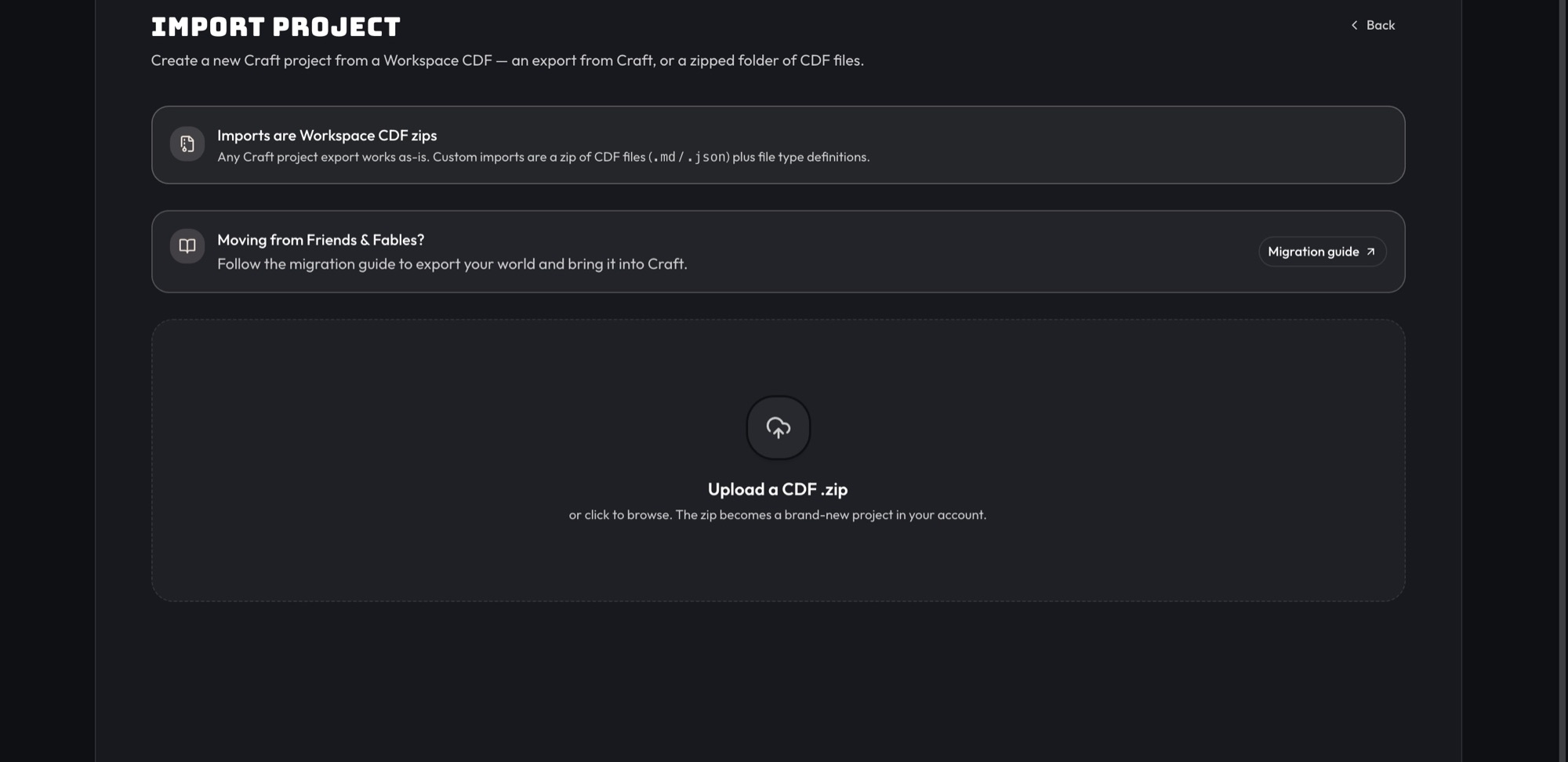
Use the Import Project page: Orbit can't unpack a zip shared in chat.
- It's a copy. The Fables world stays as it was, and later changes on either side don't sync. To bring newer Fables changes over, export and import again as a new world.
- Check the maps. Craft maps nest: the world map holds a city, the city's map holds a tavern. Check that the world map loaded and is the root map (see maps).
To pick a different world map, open Maps, then Map settings and Root map.
- Name your GM. Fables called its GM Franz. In Craft the GM's name, portrait and voice are yours to set.
Doing it well
- Save a version before a big import. History keeps every replaced file, but one saved version brings the whole world back at once.
- Keep the
.craftfolder in every zip you send back. Without it, a type change or a settings change can't come along, and files changed on both sides can't be told apart from new edits. - Read the plan. Look for creates you expected to be updates: they
usually mean a file lost its
$craftblock. - Prefer small zips for small changes. A zip of the three files you changed is easier to check than a whole export.
- Run the coding agent on your own computer. Open the unzipped folder in an agent running locally; a cloud sandbox can't see your files.
- For ongoing work, sync instead. Zipping back and forth works, but the Craft CLI keeps a folder in step with the world, deletes included.
Mistakes
- A copied file keeps its
$craftblock. Two files with the same id both fail. When you copy a file to make a new one, delete the copy's$craftblock. - Expecting a deletion to carry over. Imports never delete. Delete files in the world itself, or push from a synced workspace.
- Renaming a file on disk to rename a record. The import ignores the
move and keeps the old name. Change the
nameinside the file. - A file whose type the world doesn't have. It fails unless the zip brings the type's definition along.
- A file matched to a file of another type. It fails: an import never changes a file's type.
- An old CDF file. The single JSON manifest from the first CDF is no longer read. Export the world again to get a Workspace CDF.
Limits
- A zip can be at most 50 MB, and one import can make at most 20,000 changes. A zip whose contents unpack too large is refused too.
- Anyone who can edit a world (its owner and editors) can import into it; only its owner can export it. A collaborator's import leaves the world's cloning setting as it was.
What an import plans
Each file in the zip gets one of these outcomes:
| Outcome | What it means |
|---|---|
create |
Nothing in the project has this file's id, so it is created at its path in the zip, keeping its id. |
update |
The same file, unchanged in the project since the zip was made, so the zip's version is saved over it. |
overwrite |
The same file, changed on both sides. The zip's version wins only when overwriting is on; the replaced version stays in the file's history. |
unchanged |
The same file with the same content. Nothing happens. |
settings |
The same content, but the file's own settings or map and other metadata differ, so only those change. |
conflict |
Changed on both sides with overwriting off (in a zip with no sync state, any difference counts), or a different file already sits at that path. Nothing is written for it. |
package_managed |
The file belongs to an installed package, so an import can't change it. |
missing_file_type |
The project has no file type for this file's extension, and the zip has no definition for it or type changes are off. |
invalid |
The file couldn't be read, failed its type's schema, has the same id as another file in the zip, or is matched to a file of a different type. |
excluded |
You left this file out of the import. |
Each file type in the zip gets one of these:
| Outcome | What it means |
|---|---|
create |
The project has no type with this slug, so it is created. |
update |
The project's type with this slug differs, so the zip's definition replaces it. A schema change that existing files would fail is refused. |
missing |
The project has no type with this slug, and type changes are off, so it is only reported. |
drifted |
The project's type differs from the zip's, and type changes are off, so it is only reported. |
unchanged |
The type is the same on both sides. |