
Patch Notes B0.051 GM - Orbit in Harness 2, UI Changes
Hey everyone, hope everyone is enjoying GM Harness 2 so far! Like we mentioned in the last post, there’s going to be a bit adjustment period as world builders update their worlds and people get used to the new UI - a lot has changed! That being said, we definitely could have done better with the launch post - there were many things that changed that we did not include. It was already really long so we tried to cut it down, but we should have added a UI changes tour, which we’ll put below.
We know there are still issues and rough edges - we purposefully shipped Harness 2 into beta before it was “finished”. We did this because while alpha feedback is great, it is not representative of everyone. As soon as we think the update is substantially better than before, we’d rather ship it out to everyone, get wider feedback, and action on it quickly.
Here’s what we heard from you since the update:
- Font size too big (we brought it down, and also added a font size setting)
- Orbit is bad with H2 migrations and updating H2 related state (fixed in this update)
- Want to see more of the system prompt (coming in next update)
- Want the AskPlayerQuestion Tool back (we’re going to try to bring it back, there are technical challenges with this one)
- People preferred the way NPC dialogue was nested in the GM’s message bubble vs having it broken out into separate chat bubbles (now available in chat only mode)
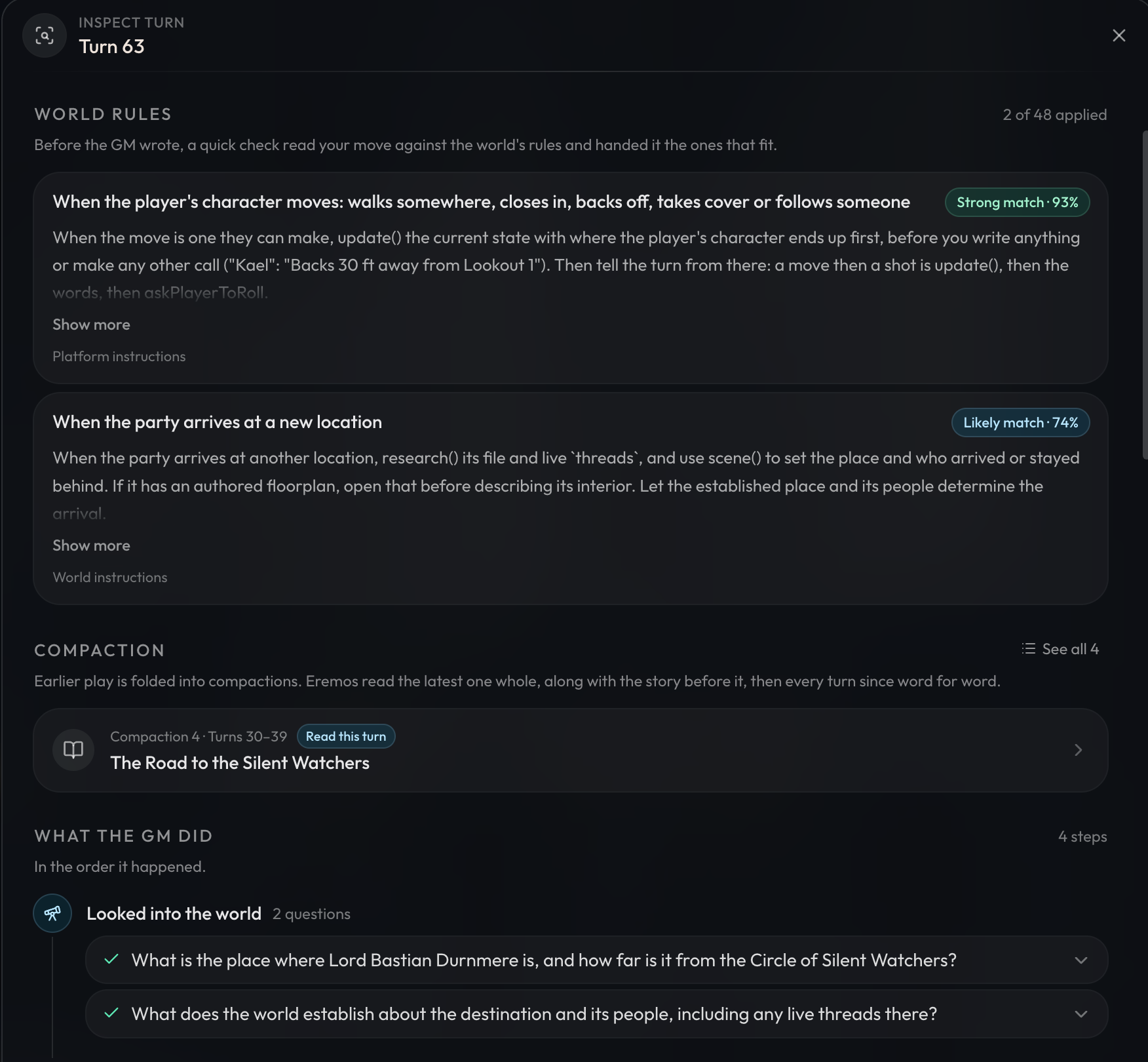
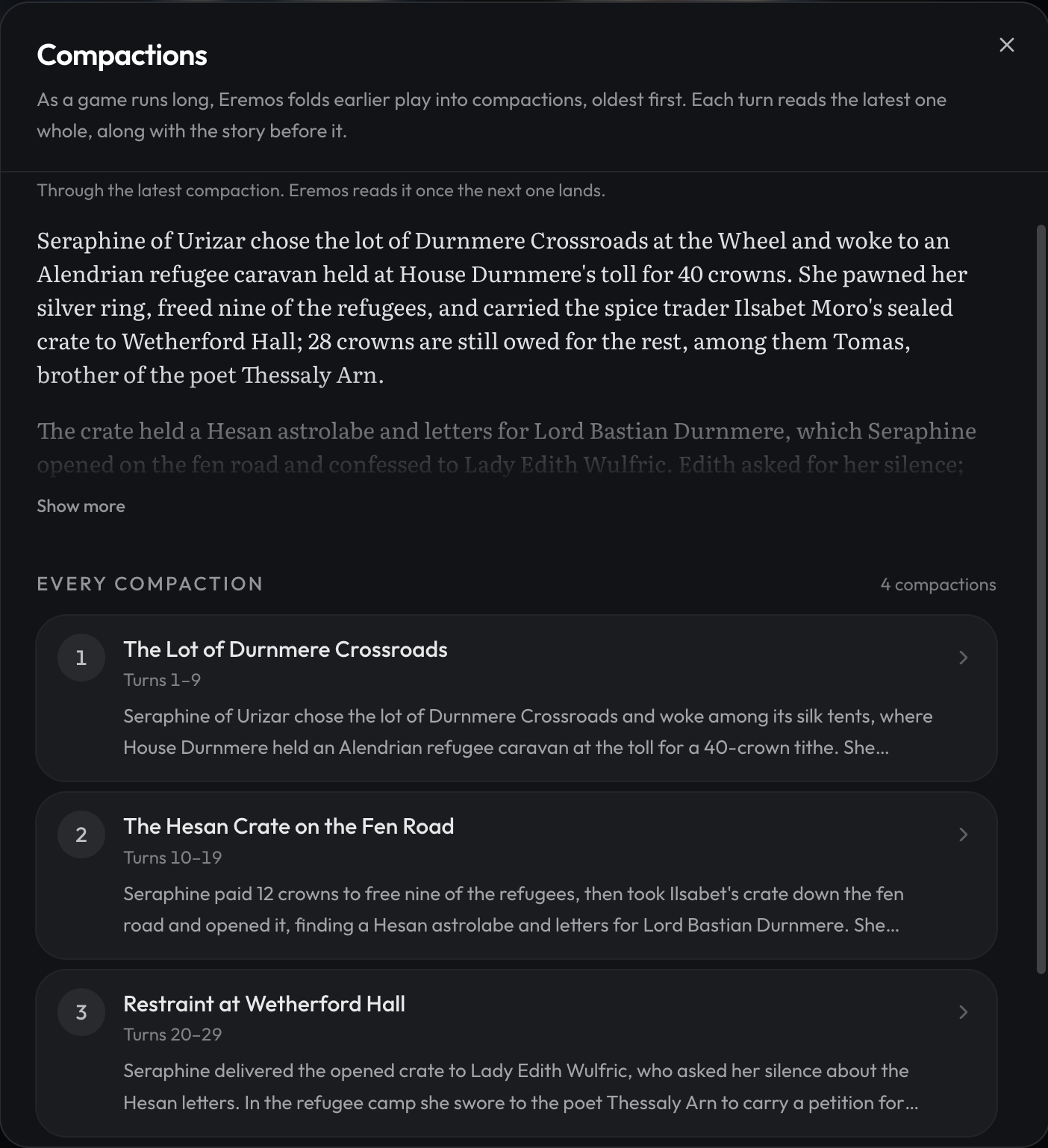
- You can now view compactions and read tool results when inspecting a turn.
- Folks are confused about where certain settings or views have moved (Our bad, will walk you through it below!)
I can’t list every post in Discord here - but these were the big ones we heard from a number of players. We’ll continue responding in Discord to other issues and you can expect to see rapid updates from us over the next week.
Now, onto the update:
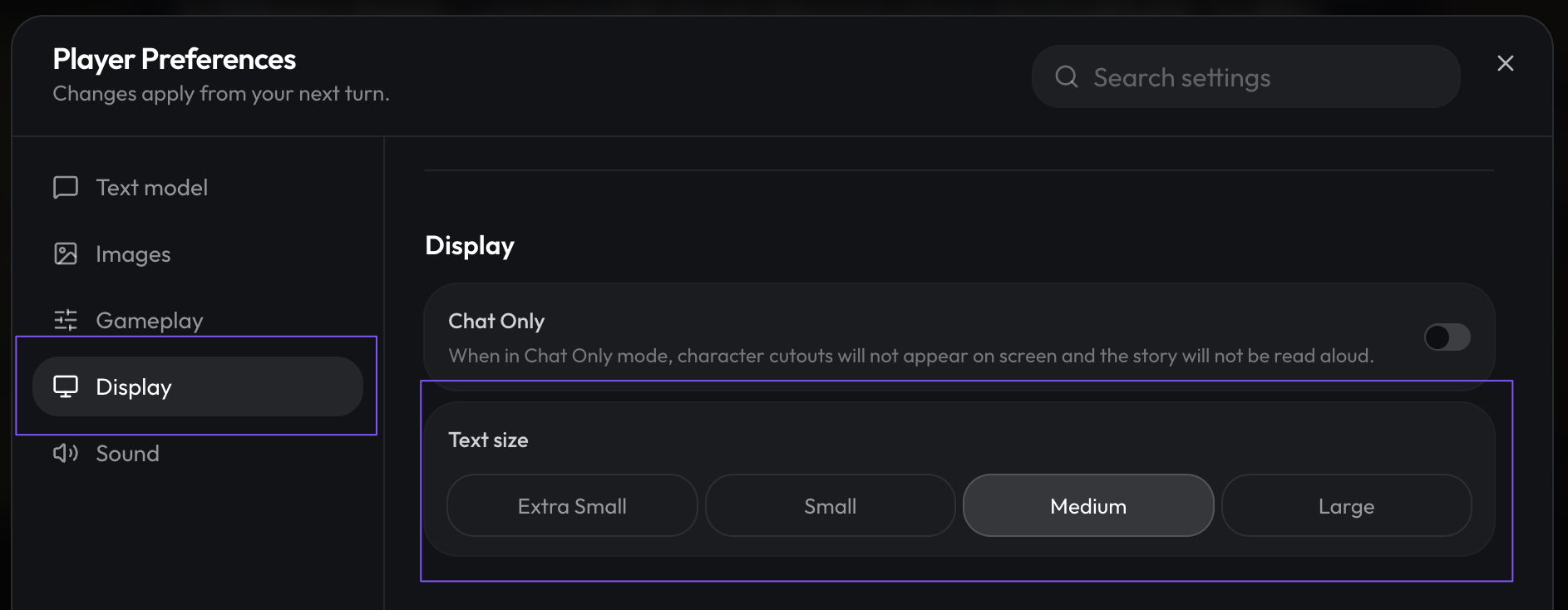
Text Size Setting
We’ve reduced the default text size in game, but you can go into player preferences to change the size to your preference!
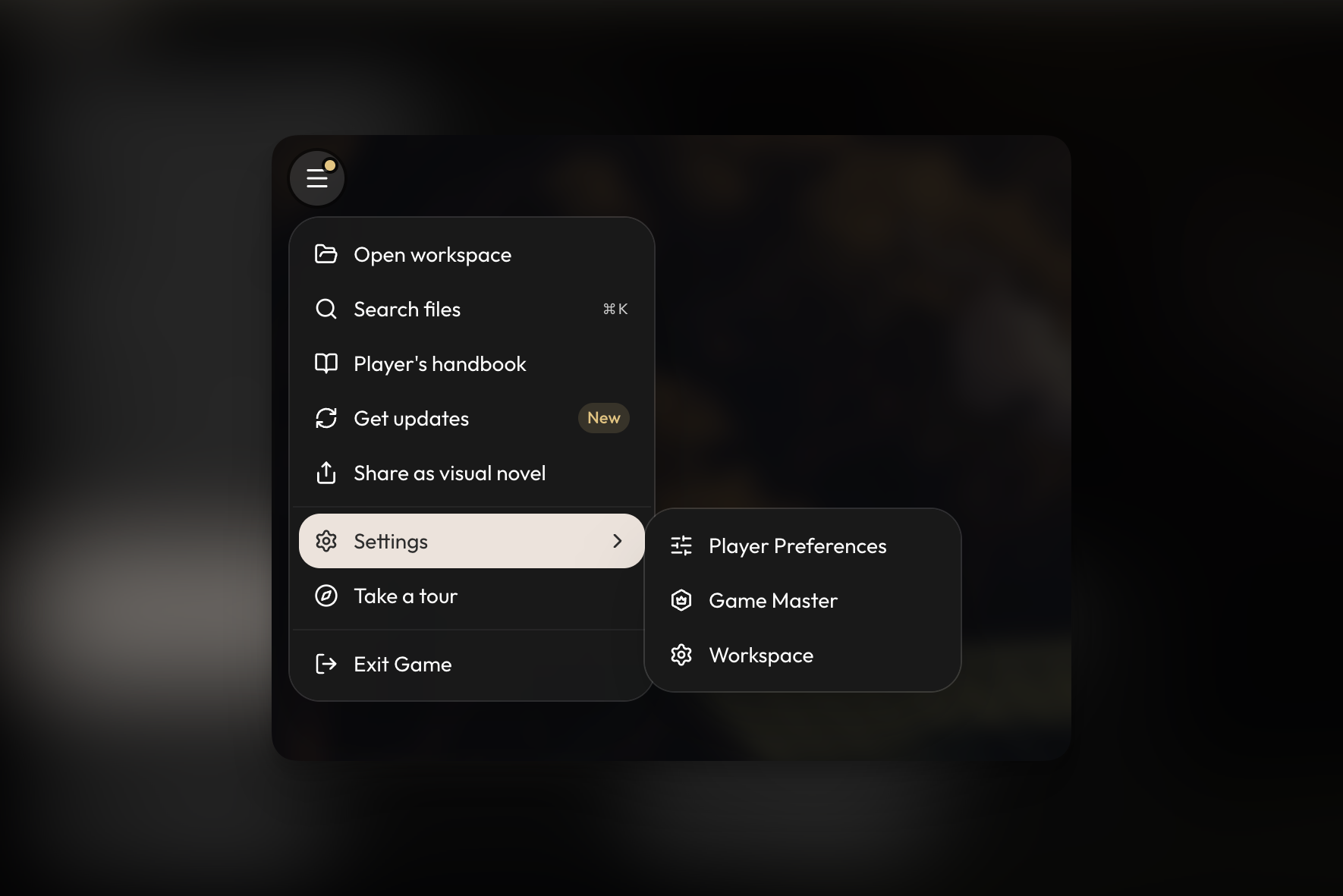
Reorganized Settings
You can now quickly access player preferences, game master, and workspace settings from the in-game menu.
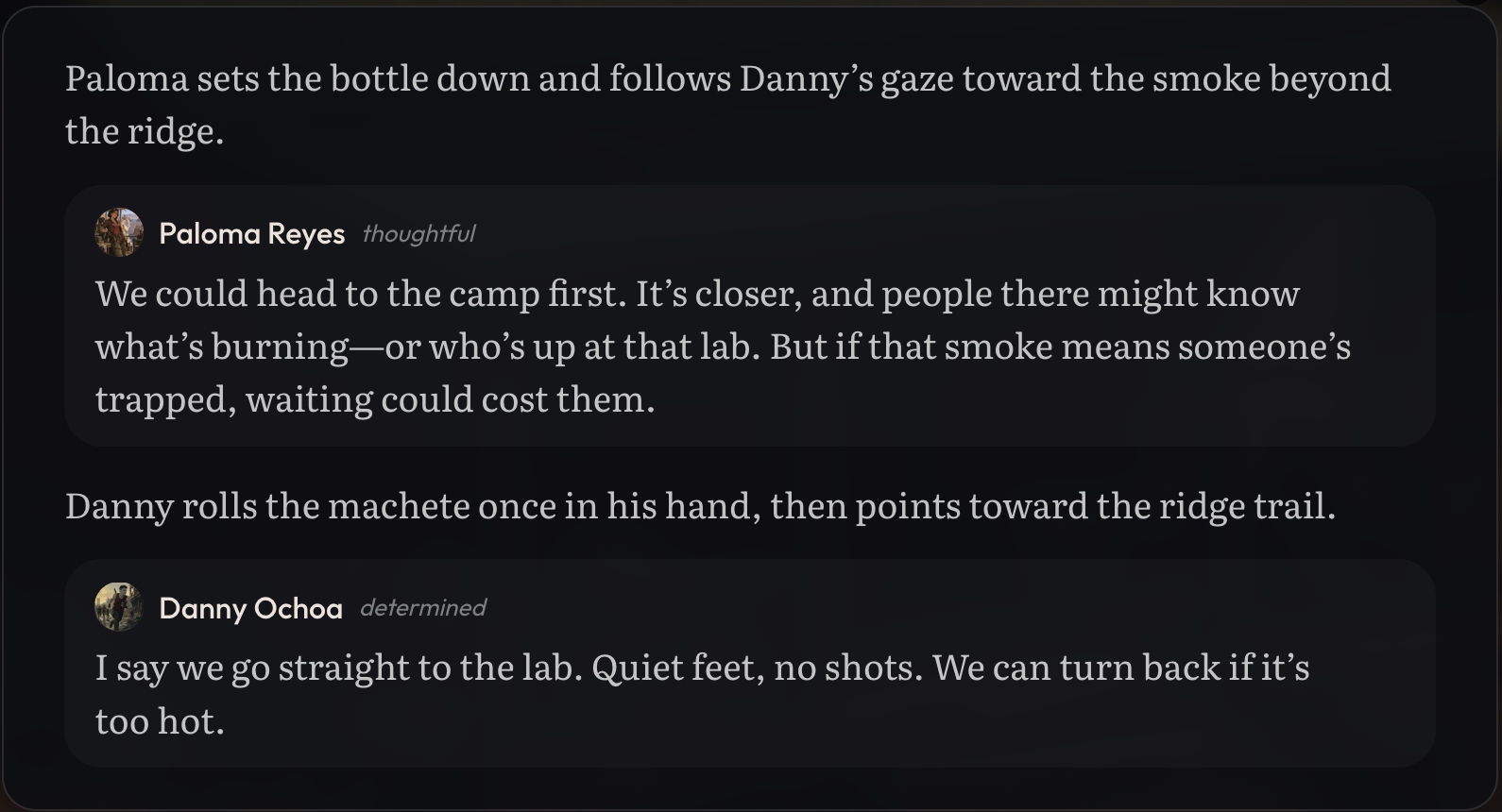
Nested Dialogue
We’ve updated chat-only mode to nest NPC dialogue in the GM’s message instead of showing them as separate messages.
Orbit
Orbit can now:
- Help you migrate your H1 worlds to H2
- Edit H2 instructions and help you audit them
- Edit H2 current state, including the map and trackers
UI Updates Tour and FAQ
There has been some confusion over where some previous functionality went, so let us try to straighten things out here!
Chat Only Mode
For those who prefer a normal chat rather than visual novel blocks, you can toggle that mode by going to Player Preferences -> Display -> Chat Only

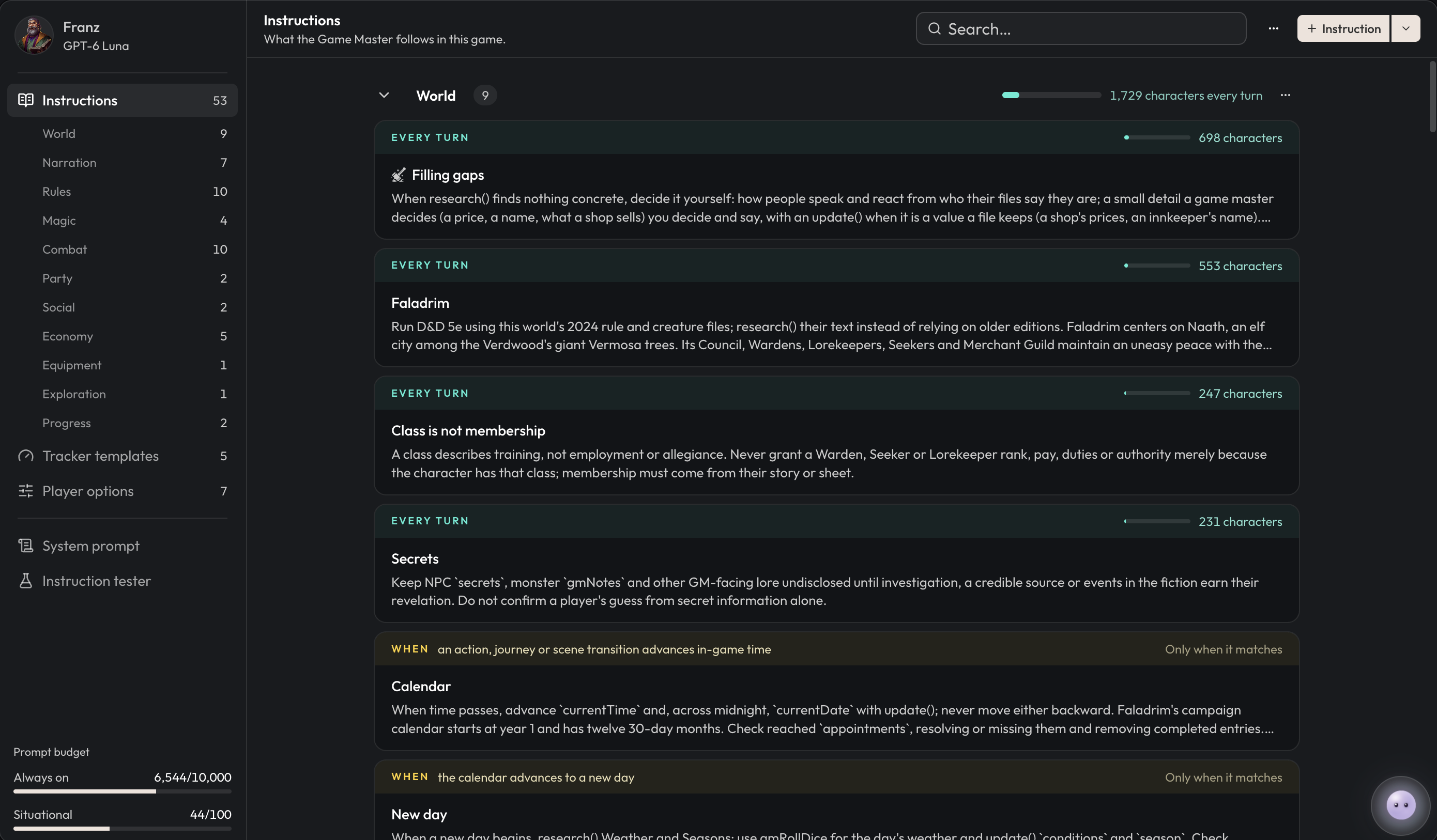
GM Instructions
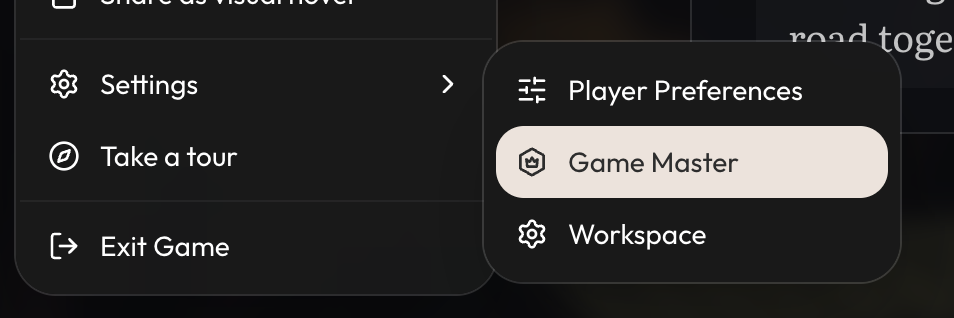
GM Instructions can be accessed and modified in-game by going to Settings -> Game Master. If you’re trying to customize your GM behaviour in game, make sure to also check out your selected Player Options as those will also have a big impact on how your GM behaves. You can read more on how GM instructions work with Harness 2 here: https://www.craftrpgs.com/docs/writing-gm-instructions.
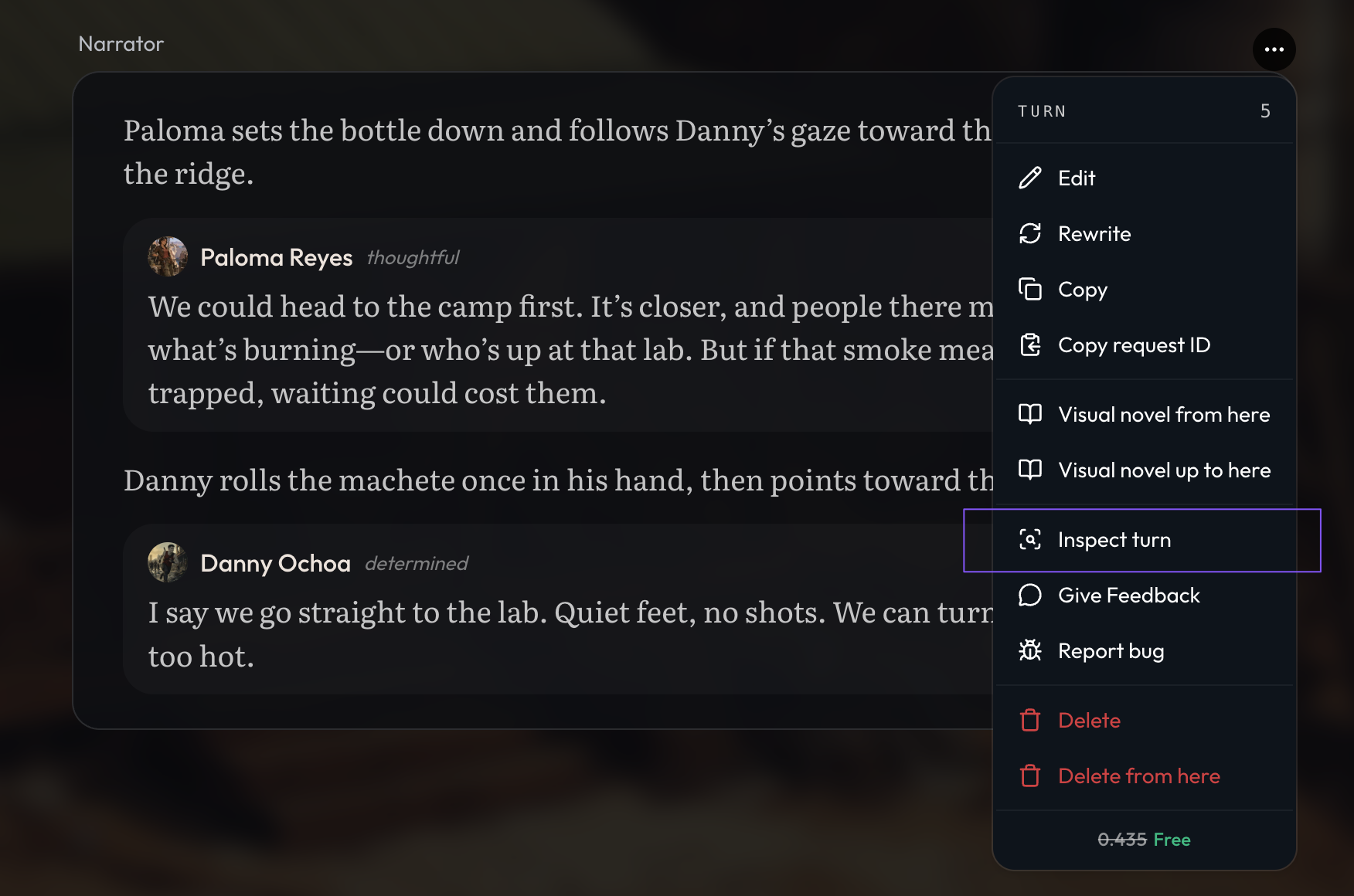
Turn Inspection
In our old UI, we surfaced a lot of the reasoning and tool calls directly in the chat UI. This lead to an overcrowded and messy UI that would distract players from the story. While we still show some of the detail in the loading state, we’ve moved the finished results into a new turn inspector. In here, you’ll find the GM’s reasoning, tool calls, instructions used, compcations and more.
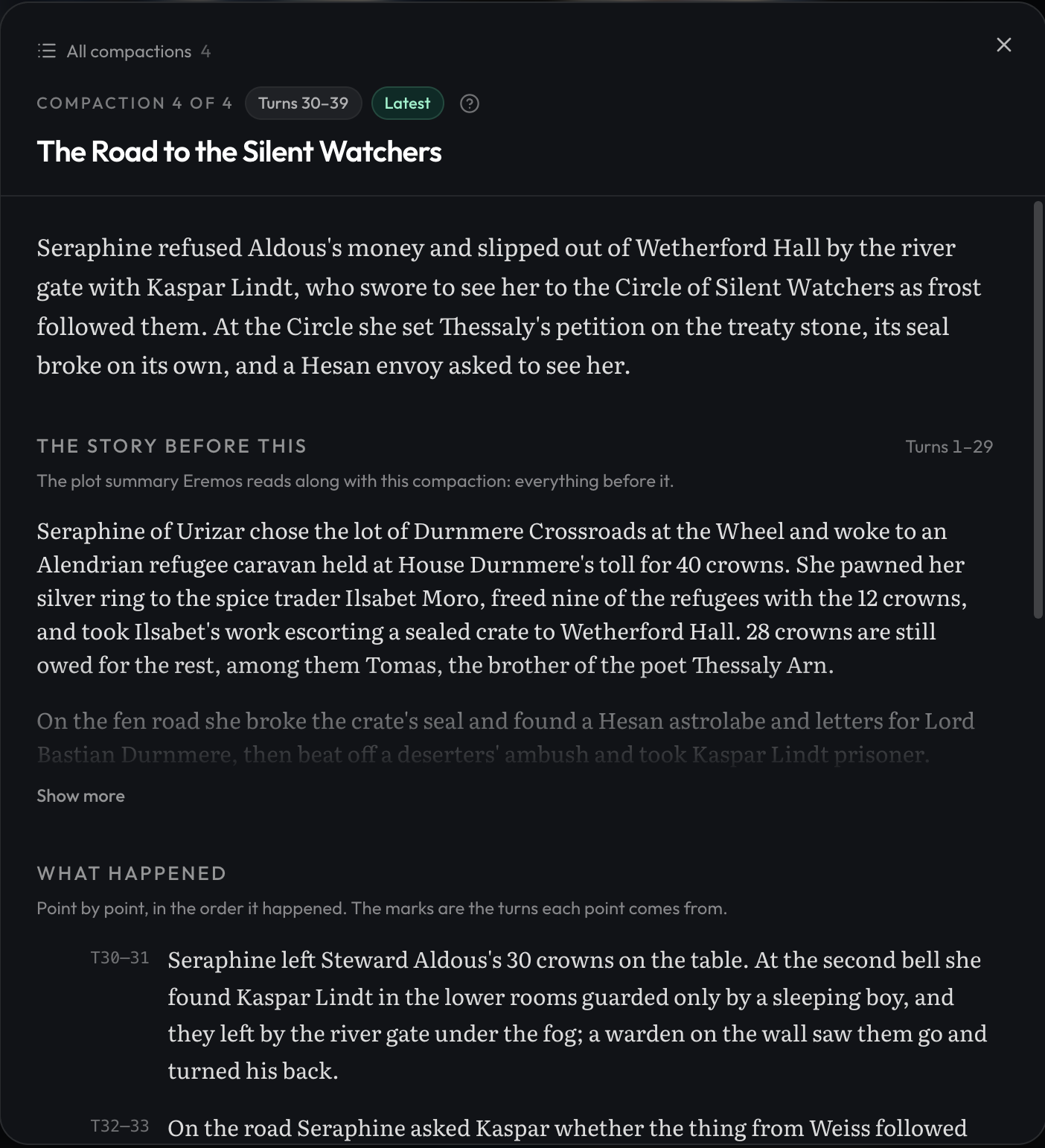
Compactions
Compactions are what many of you think as memory, summaries, or chapters. We’re using the technical term to avoid confusion, since memory, summaries, and chapters may be used in other ways.
For longer games, you can now view the compactions when you inspect a turn. You can think of compactions as a detailed chapter summary that automatically gets created as you play, and that the GM uses during research to recall important details when relevant.
New Workspace UI
We’ve also updated the workspace UI, to make it more intuitive.
- We moved GM related views into a special GM settings tab, using the crowned die icon.
- We moved maps out into their own tab, to give them more room to breathe
Other Fixes
- Added a search to player preferences
- You can now click anywhere on a player option card to pick it.
- Fixed dropdowns sliding off the screen on mobile.
- Fixed project release previews crashing instead of opening.
FAQ
Why can’t I set the conversation history length anymore?
Harness 2 uses a different underlying architecture. In H1, we would send the last ~8 messages to the GM. In H2, we rely more heavily on context caching and use an append-only method, so we send as many messages to the GM as we possibly can that fit in our compaction window. This means the GM sees much more of your conversation history than before, and there’s no slider to adjust.
Why does it take more clicks to open GM instructions now?
We’re designing the default in-game experience for most players. The ideal experience for players is to be immersed in the story and the gameplay, not necessarily viewing and fiddling with context instructions. We wanted to simplify the UI for these players so that they can quickly adjust their preferences via player options.
The folks who tend to adjust GM instructions a lot tend to be world builders who are testing their worlds and instructions, or are power users. We realize that the new UI may be a downgrade for these use cases, so we’re planning to add some special toggles in the settings to expose some of these views again.
Can we increase instruction caps or get pinned/partial files back?
Most likely not. We think the current limitations are healthy and encourage users to be conscious of their instruction usage. We found consistently in H1 that players would shove a lot of AI-generated instructions into their games. Most of the time, these instructions were bloated and had adverse effects.
In programming, constraints create efficiency. If there are no constraints, then you have no motivation to make things more efficient. Efficiency is really important in AI RPGs, because all of us are paying for the tokens used to play these games. As a platform, we have a responsibility to drive gameplay to be as efficient as possible so that players can play more for less money.
Additionally, poorly written or inefficient instructions have negative consequences on performance. See the video in this guide, which explains more. https://www.craftrpgs.com/docs/writing-gm-instructions
All that being said, if enough players can demonstrate to us that they have tried to optimize their instructions and still cannot fit them within the caps, we may consider raising them.
Pinned files will not be coming back for all of the reasons listed above. To recreate the effects of partial files, we recommend using situational instructions to point at a file that should be read in a certain situation.
What model is the image bank using?
Krea-2-turbo for now. We may update the model over time. The goal is to have great images for all situations and styles in the bank.